The Profile page allows each user to view their own professional details, assigned work schedule, and holiday calendar within the organization.
It provides a clear and organized summary of your personal setup in Leavo, helping you understand your current work configuration and schedule rules.
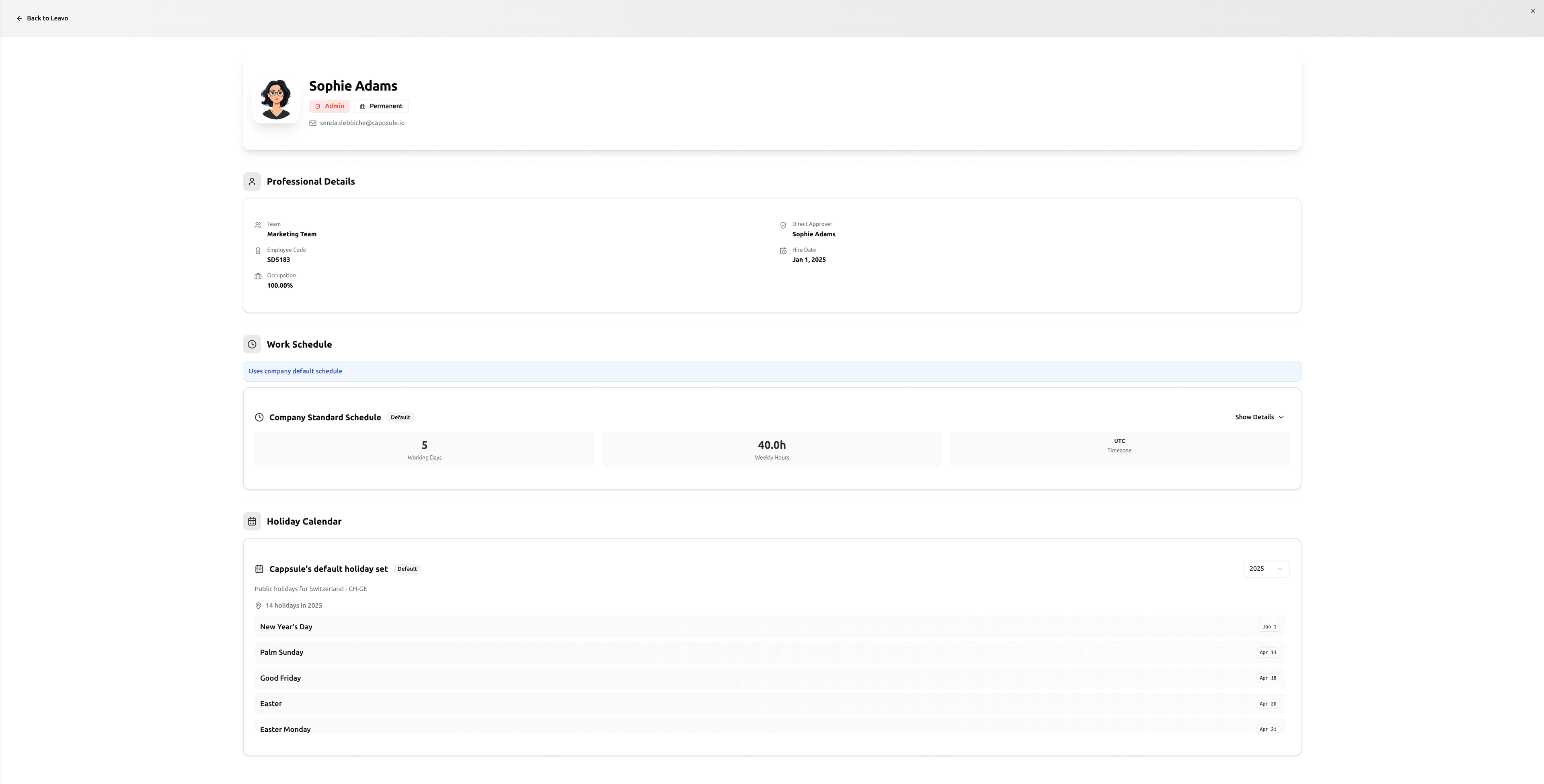
From the Profile page, you can:
- View your account and role information
- See your team assignment and hire date
- Review your work schedule and total weekly hours
- Check your holiday calendar and public holidays applied to you
The Profile page is personal. Each user can only see their own data.
HR and Admins can still update this information from the Members section if necessary.
Your Information
At the top of the page, you’ll see your personal details and status.
| Field | Description |
|---|---|
| Name | Your full name as registered in Leavo. |
| Role | Your role in the organization (Administrator, HR, Employee). |
| Employment Type | Type of contract (Permanent, Intern, Contractor). |
| Email Address | Your professional email used for login and notifications. |
| Status Badges | Visual indicators such as Admin, Permanent, Part-Time, etc. |
Action available:
← Back to Leavo– Returns you to the main dashboard.
Professional Details
This section displays your current position within the organization and key HR information.
| Field | Description |
|---|---|
| Team | The team or department you belong to (Team 1). |
| Hire Date | Your official start date with the company. |
| Employee Code | Your unique employee identifier (EMP001). |
| Occupation | Indicates your work rate or employment percentage (100%, 80%). |
| Direct Approver | (Visible only for non-admin users) Shows the name of the person who reviews and approves your leave requests (Jane Doe – HR Manager). |
The Direct Approver field helps employees know who validates their leave requests or remote work days.
For Admins, this field is not displayed since they can approve requests directly.
Work Schedule
Your Work Schedule section shows the working days, hours, and timezone currently assigned to you.
If you’re using the company’s global schedule, you’ll see the message:
“Uses company default schedule”
| Element | Description |
|---|---|
| Schedule Name | The title of the schedule applied to you (Company Standard Schedule). |
| Default Label | Indicates if it’s the organization’s standard schedule. |
| Working Days | Number of days worked per week (5 days). |
| Weekly Hours | Total working hours per week (40.0h). |
| Timezone | The timezone defined for your schedule (UTC, Europe/Zurich). |
Action available:
Show Details– Expands to display the full day-by-day working sessions and times.
Schedules are configured by HR or Admins under Administration → Schedules.
Holiday Calendar
Your Holiday Calendar section displays the public holidays and company-specific holidays that apply to you.
If you don’t yet have a holiday set assigned, you’ll see the message:
“No holiday calendar assigned”
| Element | Description |
|---|---|
| Holiday Set Name | The calendar linked to your profile (Switzerland – Bern Holidays). |
| Active Holidays | Number of active holidays within your calendar. |
| Region | Country or region your holiday calendar is based on. |
Holiday calendars are managed by HR or Admins under administration → Holidays.
Pro Tips
- Personal Reference: Use this page to verify your assigned team, schedule, and holiday set.
- Check Schedule Accuracy: Make sure your timezone and weekly hours match your actual working conditions.
- Holiday Awareness: Always review your holiday calendar before requesting time off to avoid conflicts.
- Automatic Sync: Any change made by HR to your team, schedule, or holidays is instantly reflected in your profile.
The Profile page gives you a clear overview of your professional setup from your team and work hours to your assigned holidays ensuring transparency and consistency across your account.
It’s your personal space to understand how your working and leave configurations are structured within Leavo.