Manage your organization’s teams and organize members efficiently.
The Teams page lets Admins and HRs create, edit, and manage groups of employees, ensuring clear approval workflows and structured team hierarchies.
From the Teams page, you can:
- Create new teams
- Assign a default Team Approver (for leave validation)
- Add or remove members from each team
- Edit existing team details
- Delete teams that are no longer needed
- Export team data for reporting or auditing
Only Admins and HR roles can manage teams.
Regular employees can view their assigned team but cannot edit it.
Main Table
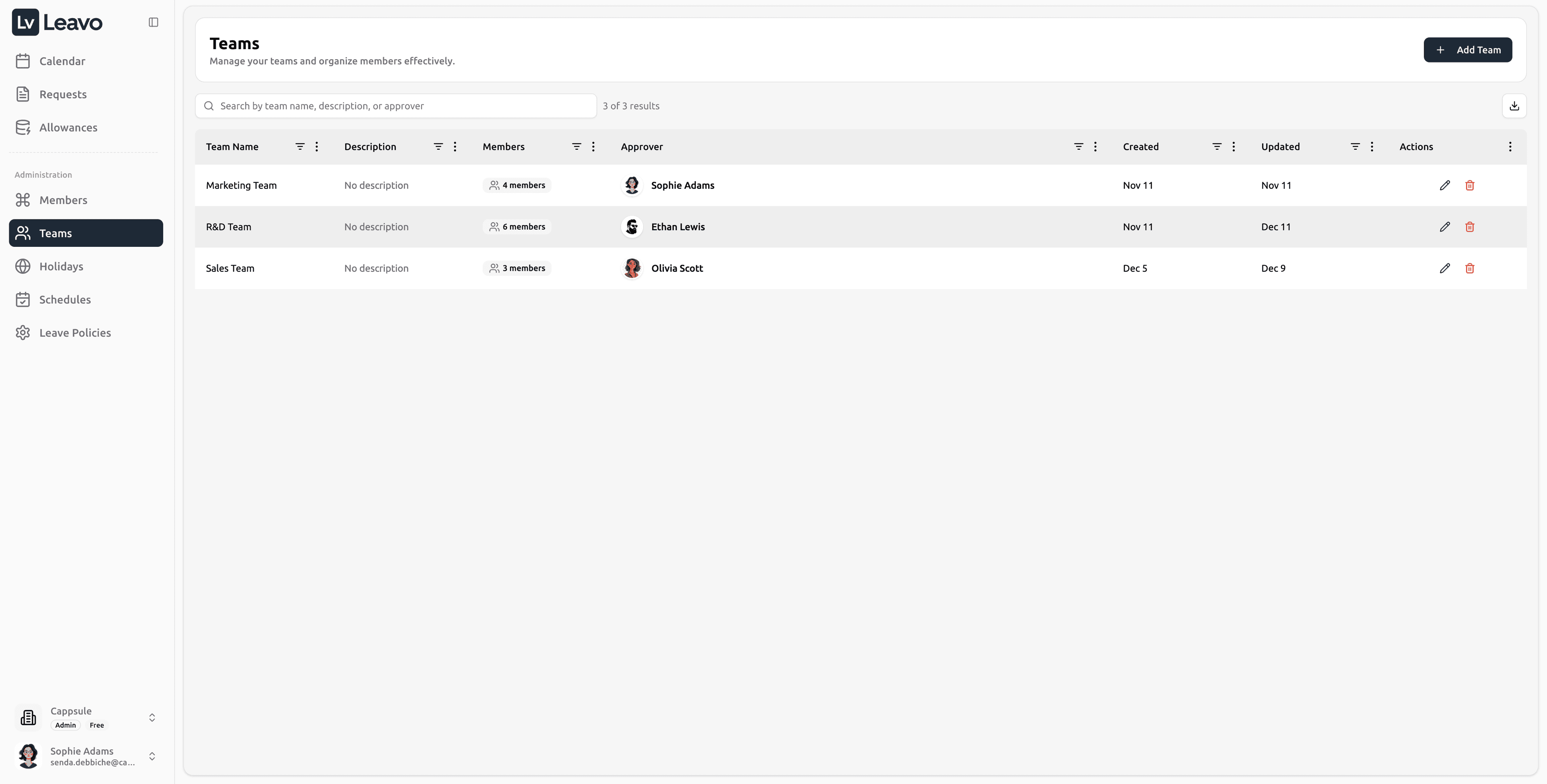
Each row in the table represents a team in your organization.
| Column | Description |
|---|---|
| Team Name | Displays the team’s name. Clicking a row opens team details. |
| Description | Optional text describing the team’s purpose or function. |
| Members | Shows how many members belong to the team (3 members). |
| Approver | Displays the team’s default approver usually the team manager or HR responsible for validating leave requests. |
| Created / Updated | Indicates when the team was first created and last modified. |
| Actions | Quick controls to Edit or Remove the team. |
Creating a New Team
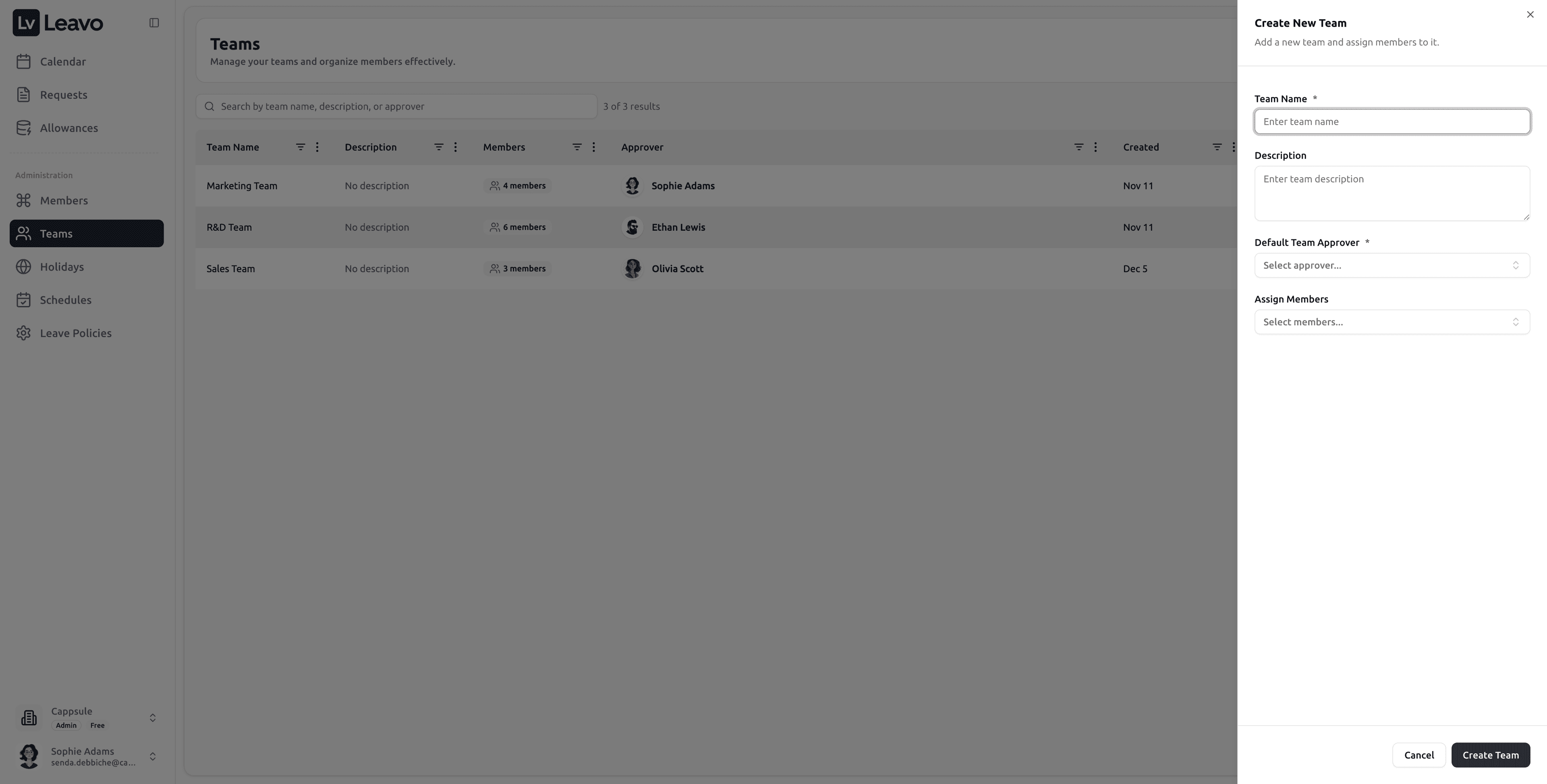
Click Add Team in the top-right corner to open the Create New Team panel.
Fields Description
| Field | Description |
|---|---|
| Team Name | Required: give your team a clear, unique name (Sales Team, Engineering). |
| Description | Optional: briefly describe the team’s role or scope. |
| Default Team Approver | Required: select a user responsible for approving requests for all members of this team. |
| Assign Members | Add existing employees to the team from the dropdown list. You can select multiple members. |
Once all details are filled, click Create Team to save the team.
If you change your mind, click Cancel to close the panel.
Editing a Team
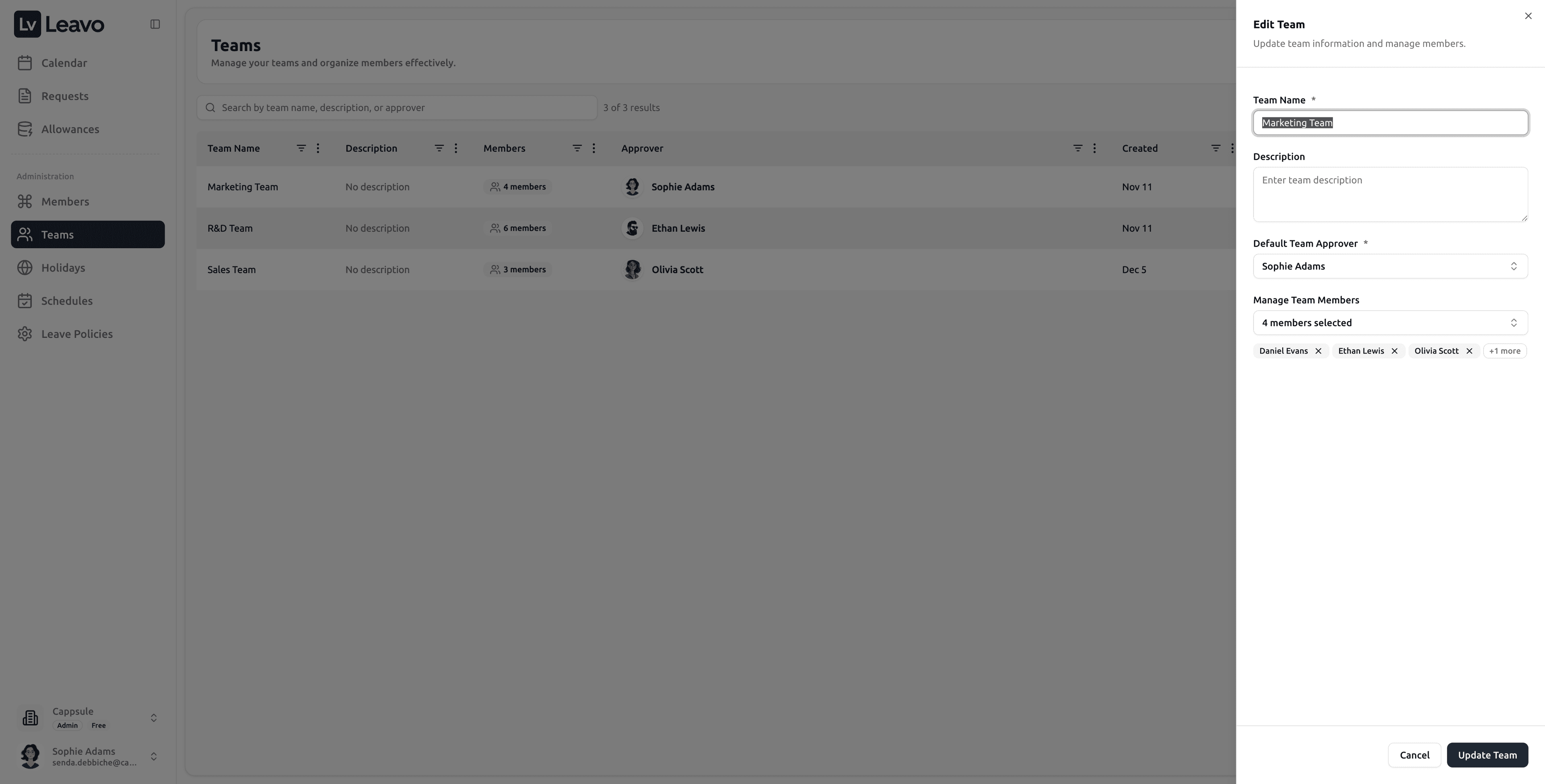
Click the Edit icon in the Actions column to update team details.
You can modify:
- Team name or description
- Default approver
- Assigned members
Changes made to a team’s approver or members update instantly across the Members and Requests pages.
Removing a Team
Click the Delete icon in the Actions column to remove a team.
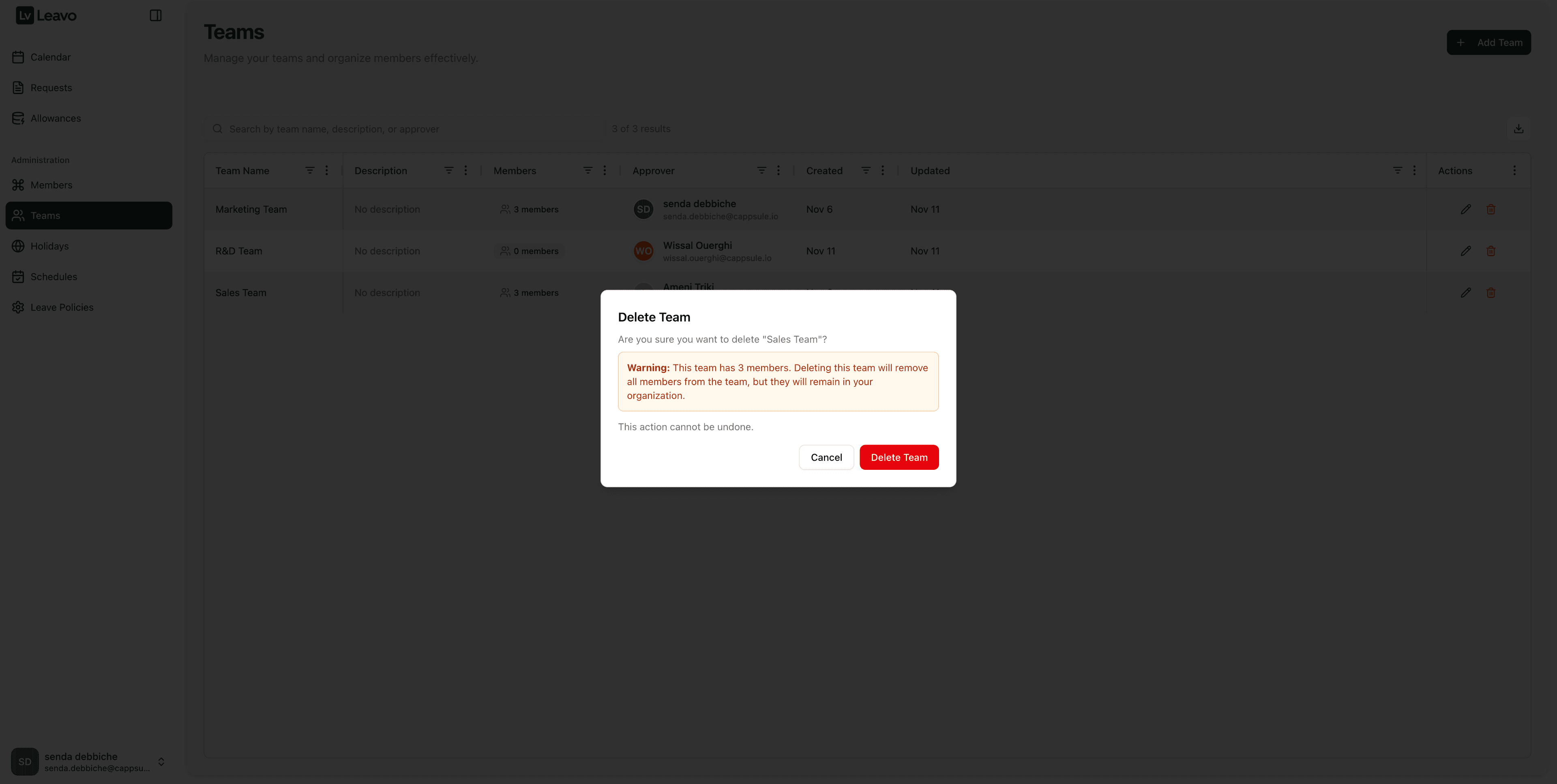
Deleting a team is permanent.
The team will be removed from all associated members and leave approval flows.
Make sure to reassign members to a new team before deleting.
If a team has pending leave requests, those requests remain visible but are unassigned until a new approver is defined.
Exporting Teams
Click the Export button in the top-right corner to download a .csv or .xlsx file.
Exports include:
- Team name
- Approver
- Number of members
- Creation and update dates
Use exports for reporting, HR audits, or organization structure reviews.
Team Approver Logic
The Default Team Approver plays a crucial role in approval workflows:
- Any new leave request from a member is automatically routed to the team’s approver.
- If a Direct Approver is defined at the member level, it overrides the team approver.
- If no approver is assigned, the request will remain pending until manually reassigned.
- Only users with Admin, HR or Approver roles can be selected as a Team Approver. Members with the Default role cannot act as team approvers.
A single manager can belong to multiple teams.
In their primary team, they may serve as the approver,
but in another team, they can have a different manager as their approver.
This allows flexible hierarchies for example, a department head who manages one team but reports to another in a cross-functional project.
Always make sure each team has a valid Default Team Approver to keep leave approval flows smooth and automated.
Pro Tips
- Structure Teams by Function – Create teams by department (HR, Finance, Tech Support) to streamline approvals.
- Keep Approvers Up to Date – When a manager leaves or changes roles, update the approver immediately.
- Use Exports Regularly – Track team changes and maintain accurate HR records.
- Assign During Onboarding – When adding new members, assign them to a team immediately for automatic approver linkage.
Your Teams page now provides a clear overview of your organization’s structure.
Each team has its own approver and member list, ensuring smooth leave approval and efficient organization management.