Define and manage working schedules for your organization.
The Schedules page allows Admins and HRs to create, edit, and assign standard or custom working patterns to team members, ensuring accurate leave and time calculations across all departments.
From the Work Schedules page, you can:
- Create new work schedules (Standard 40h, Part-Time 80%, Weekend Support)
- Edit existing schedules and update working hours
- View detailed schedules with total weekly hours and timezone
- Set one schedule as the company default
- Assign schedules to members under Administration → Members
Only Admins and HR roles can create, edit, or delete schedules.
Employees can only view the schedule assigned to them.
Schedules Overview
Each schedule is displayed as a card summarizing key information.
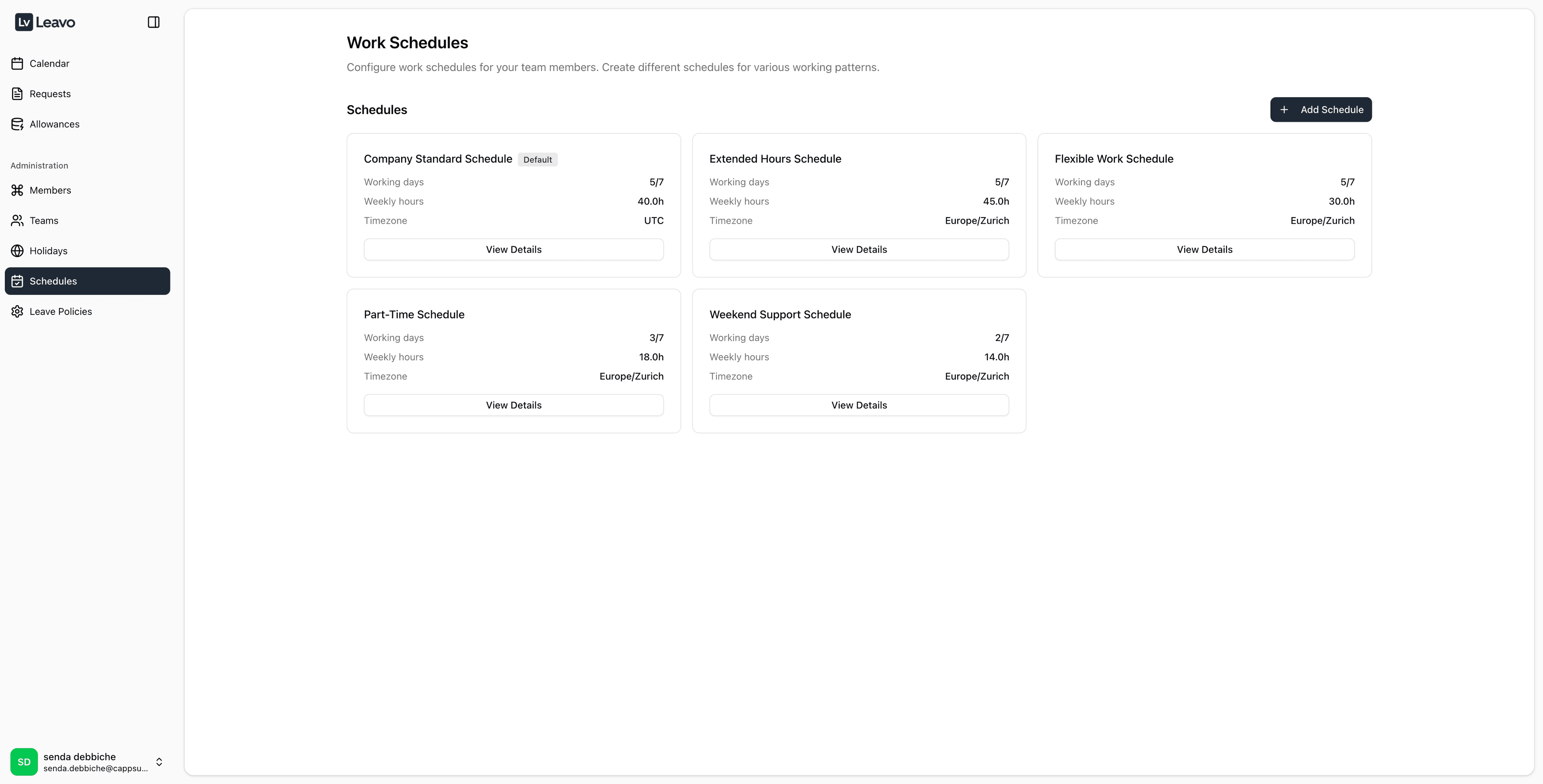
| Element | Description |
|---|---|
| Schedule Name | The title of the schedule (Company Standard Schedule, Part-Time Schedule). |
| Working Days | Indicates the number of active working days (5/7). |
| Weekly Hours | Total number of scheduled working hours per week. |
| Timezone | Timezone applied to the schedule (Europe/Zurich, UTC). |
| Default Label | Marks the default schedule applied automatically to new employees. |
| View Details Button | Opens a detailed view of the schedule’s day-by-day configuration. |
Creating a New Schedule
Click Add Schedule in the top-right corner to open the creation panel.
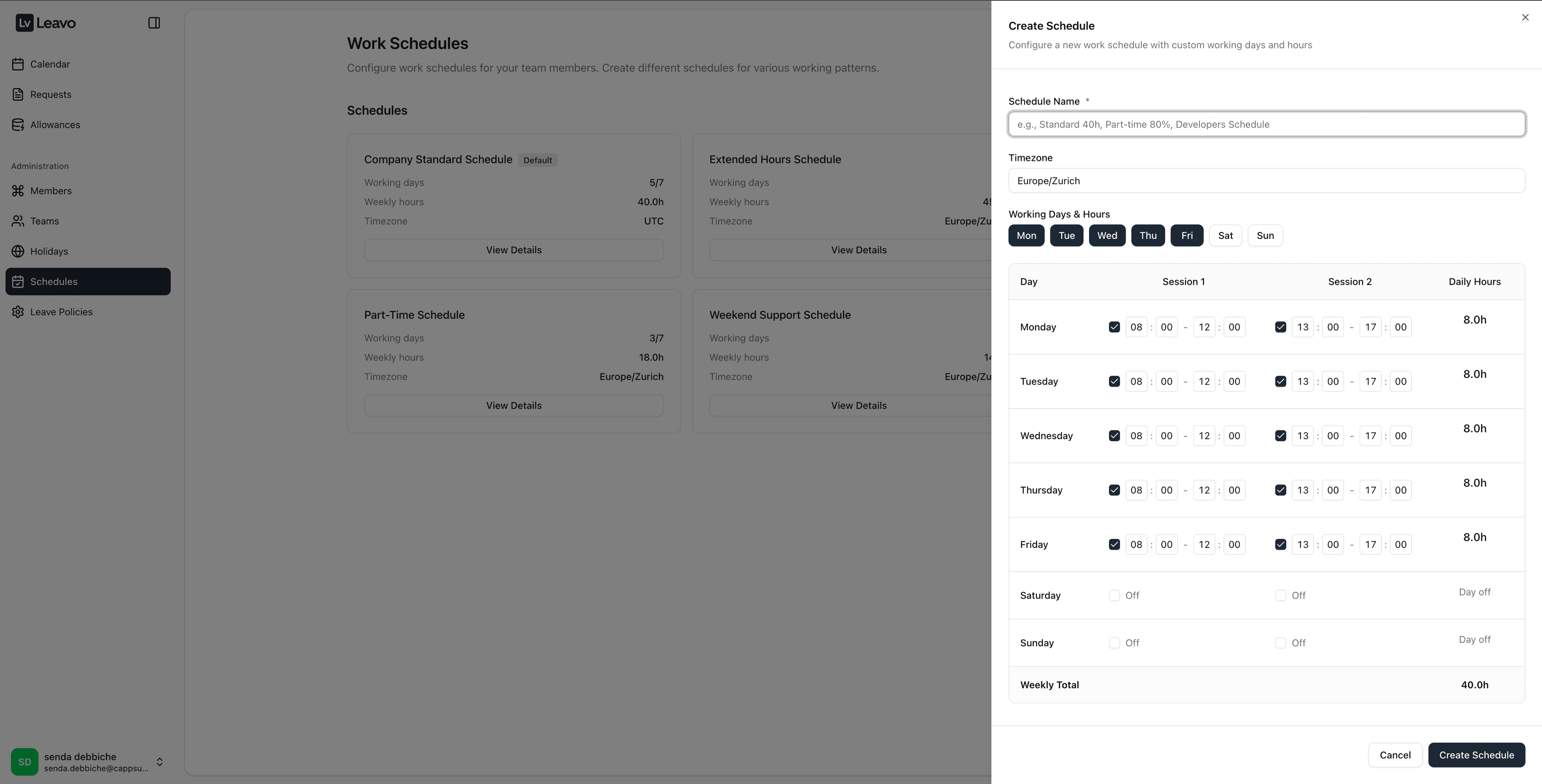
Fields Description
| Field | Description |
|---|---|
| Schedule Name | Required a descriptive name for the schedule (Standard 40h, Developers Schedule, Weekend Support). |
| Timezone | Defines the timezone for all working days and hours. Important for distributed teams. |
| Working Days & Hours | Select which days are active and define start/end times for each working session. |
Setting Working Days & Hours
Each day can have one or two sessions:
- Session 1 — Morning shift (08:00–12:00)
- Session 2 — Afternoon shift (13:00–17:00)
Uncheck the box for a day to mark it as Off (non-working day).
The system automatically calculates Daily Hours and Weekly Total at the bottom.
Example Configuration:
| Day | Session 1 | Session 2 | Daily Hours |
|---|---|---|---|
| Monday | 08:00–12:00 | 13:00–17:00 | 8.0h |
| Tuesday | 08:00–12:00 | 13:00–17:00 | 8.0h |
| Wednesday | 08:00–12:00 | 13:00–17:00 | 8.0h |
| Thursday | 08:00–12:00 | 13:00–17:00 | 8.0h |
| Friday | 08:00–12:00 | 13:00–17:00 | 8.0h |
| Saturday | Off | Off | Day off |
| Sunday | Off | Off | Day off |
Weekly Total: 40.0h
Click Create Schedule to save your configuration.
You can cancel anytime by selecting Cancel at the bottom right.
Editing a Schedule
To update an existing schedule:
- Click View Details on the schedule card.
- Click Edit Schedule to modify hours, days, or sessions.
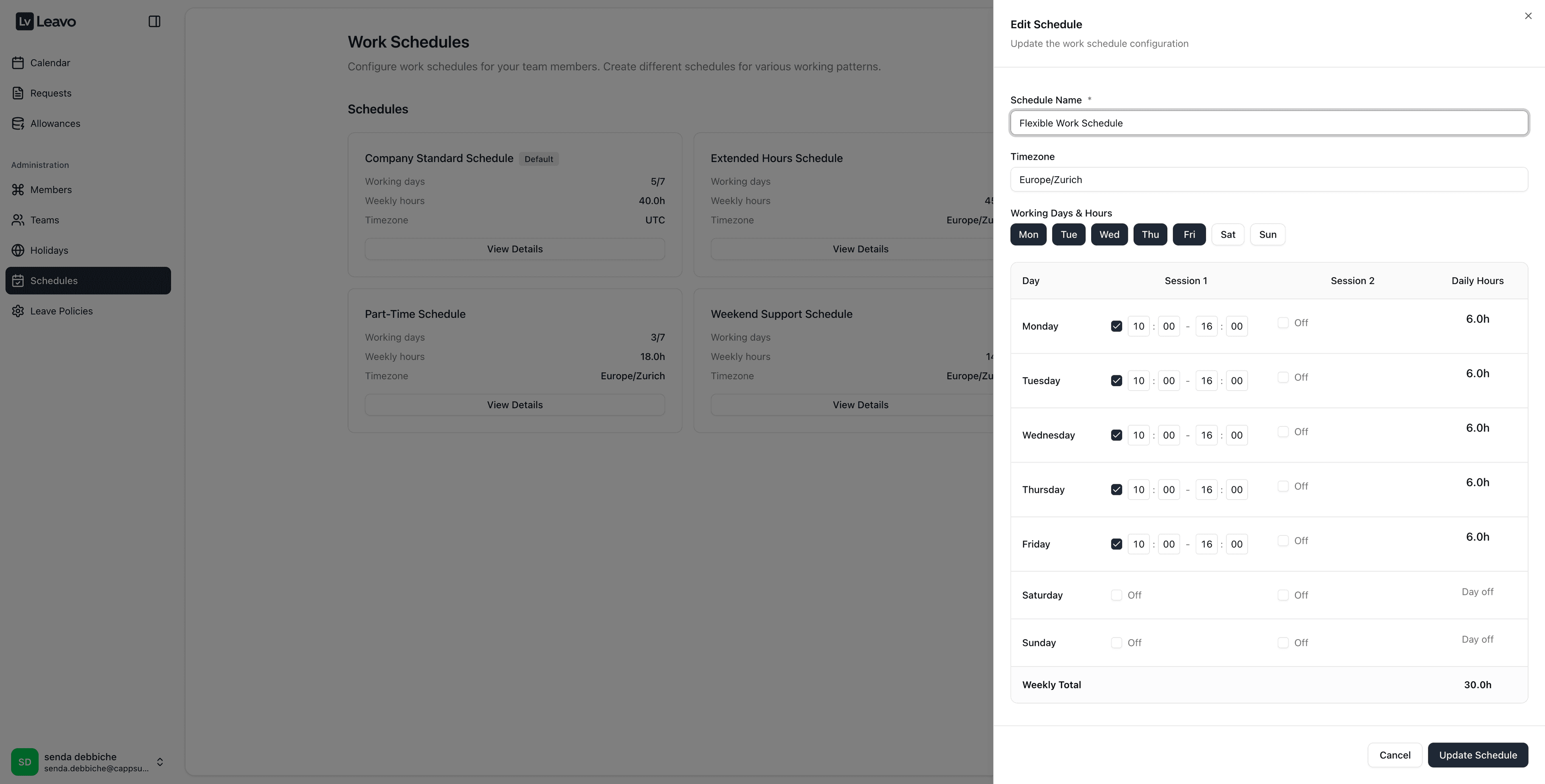
You can:
- Change the schedule name or timezone.
- Adjust session times.
- Enable or disable working days.
Click Update Schedule to save your changes.
Changes apply immediately for all members assigned to the schedule and update related leave calculations.
Schedule Assignment in Members
Each employee’s profile includes a Schedule field:
The assigned schedule determines:
- Daily and weekly working hours
- Leave accrual rate and proration
- Calendar appearance (working vs. off days)
Combine the correct Schedule and Holiday Set to ensure precise leave tracking.
Pro Tips
- Create Templates: Define templates like Standard 40h, Part-Time 60%, Weekend Support for easy reuse.
- Timezone Consistency: Use consistent timezones across teams to avoid scheduling overlaps.
- Session Control: For flexible working, create schedules with only one session per day.
- Accurate Balances: Regularly review weekly totals to ensure working hours match employment contracts.
- Duplicate Schedules: Use existing schedules as a base to quickly set up new variations.
Once configured, the Schedules page ensures every employee has a defined working pattern aligned with their contract and timezone.
All leave calculations, calendars, and balance updates rely on this data, ensuring precision and compliance across your organization.