Configure public holidays and company observances across different countries and regions.
The Holidays page allows Admins and HRs to manage holiday calendars that define non-working days used in leave calculations, employee schedules, and calendar views.
From the Holidays page, you can:
- Create new Holiday Sets for different countries or regions
- Add company-specific holidays
- Edit existing sets or mark one as the default
- View details of each set, including active and inactive holidays
- Assign specific sets to employees or teams
Only Admins and HR roles can manage Holidays.
Regular employees cannot access this section.
Holiday Sets Overview
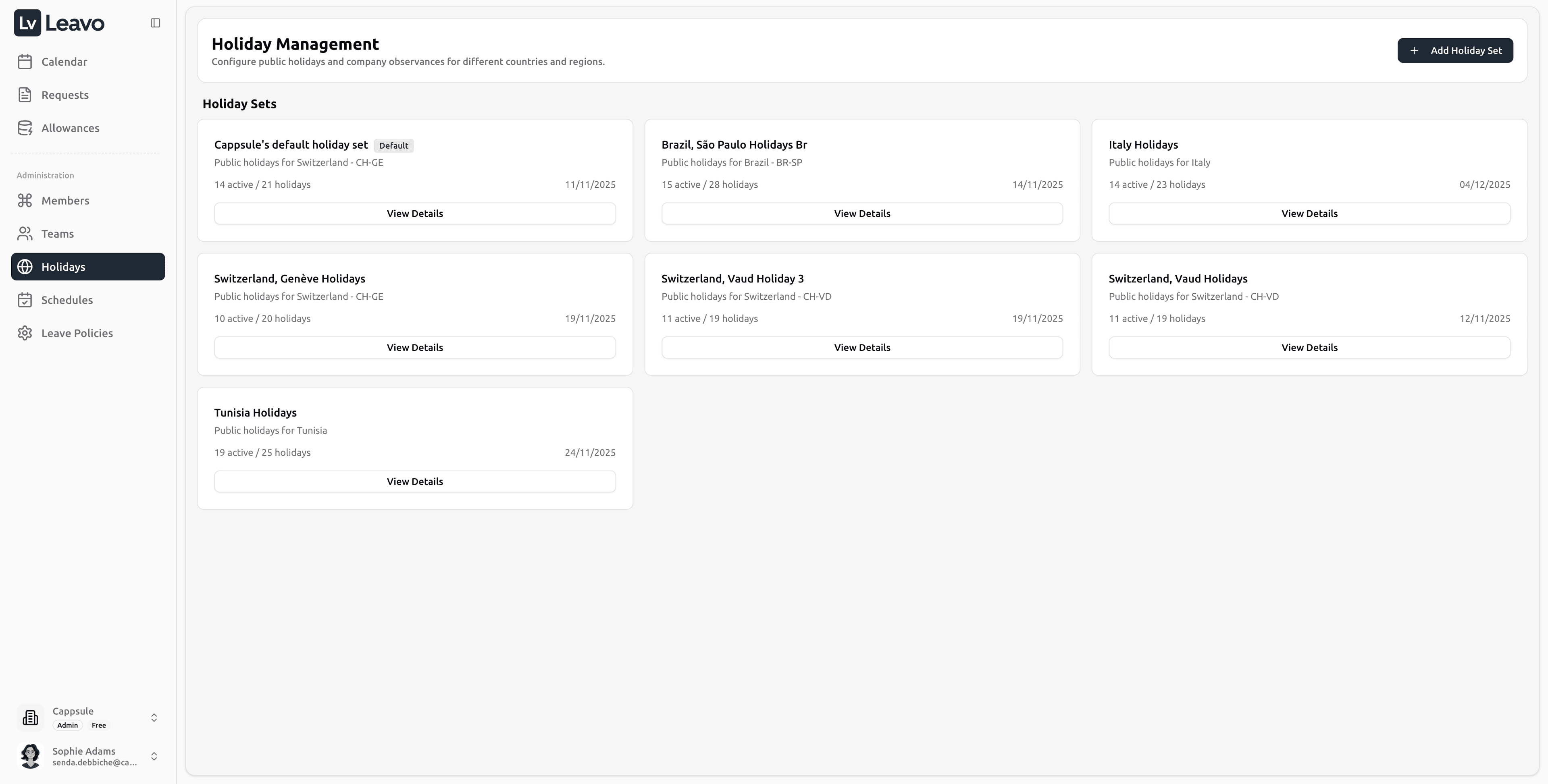
Each card in the Holiday Management dashboard represents a holiday set.
| Element | Description |
|---|---|
| Holiday Set Name | The title of the holiday calendar. |
| Region / Country | Region or country where the holidays apply. |
| Active Holidays | Number of active holidays (e.g., 14 active / 23 total). |
| Default Tag | Marks the default holiday set for new members. |
| Last Updated Date | When the set was last edited. |
| View Details | Opens a detailed editor for the selected set. |
Every member must have an assigned Holiday Set for correct leave and schedule calculations.
Official public holidays are provided only for the current year and the following year
(for example: 2025 and 2026).
This is intentional and ensures data accuracy, as some holidays especially religious or movable holidays (such as Eid, Pentecost, Ascension, etc.) cannot be reliably determined several years in advance.
👉 Every January 1st, Leavo automatically updates holiday data and adds the next year using the most accurate and up-to-date official sources available.
This approach ensures:
- Accurate leave and balance calculations
- Correct handling of movable religious holidays
- Legal and regional calendar consistency
💡 If you need to plan further ahead, you can always use Add Custom Holiday to manually add company-specific dates.
Creating a New Holiday Set
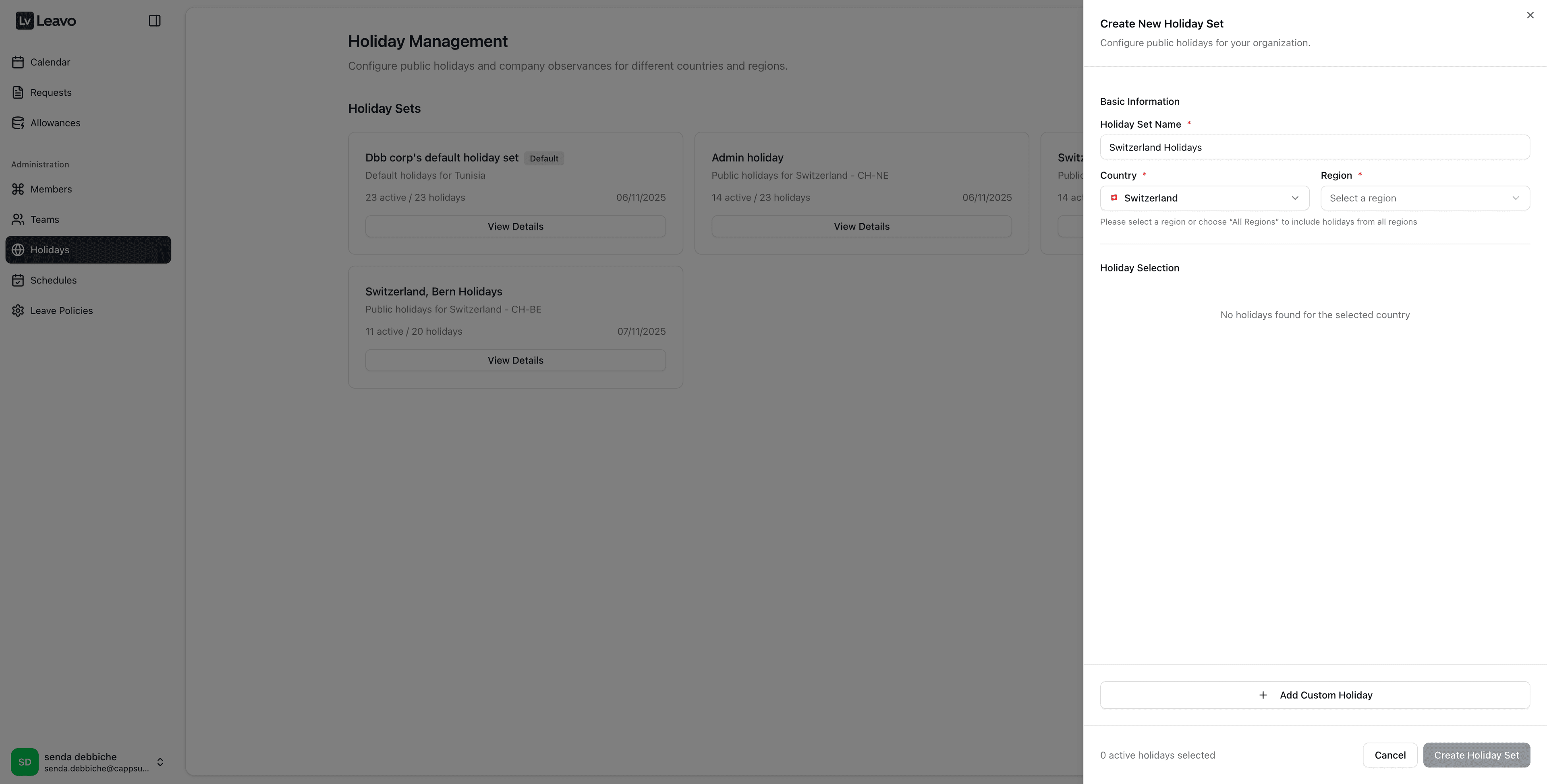
Click Add Holiday Set to open the creation panel.
Basic Information
| Field | Description |
|---|---|
| Holiday Set Name | Auto-generated but editable. |
| Country | Defines which national holidays will load. |
| Region | Select a region/canton. Choose All Regions for nationwide holidays. |
If no holidays appear, the selected region may not have predefined holidays.
Use Add Custom Holiday instead.
Holiday Selection
Once a country and region are selected, the corresponding holidays appear.
You can:
- Enable or disable individual holidays
- View dates and labels
- Adjust holidays to match company rules
The bottom of the panel shows how many holidays are active.
Add Custom Holiday
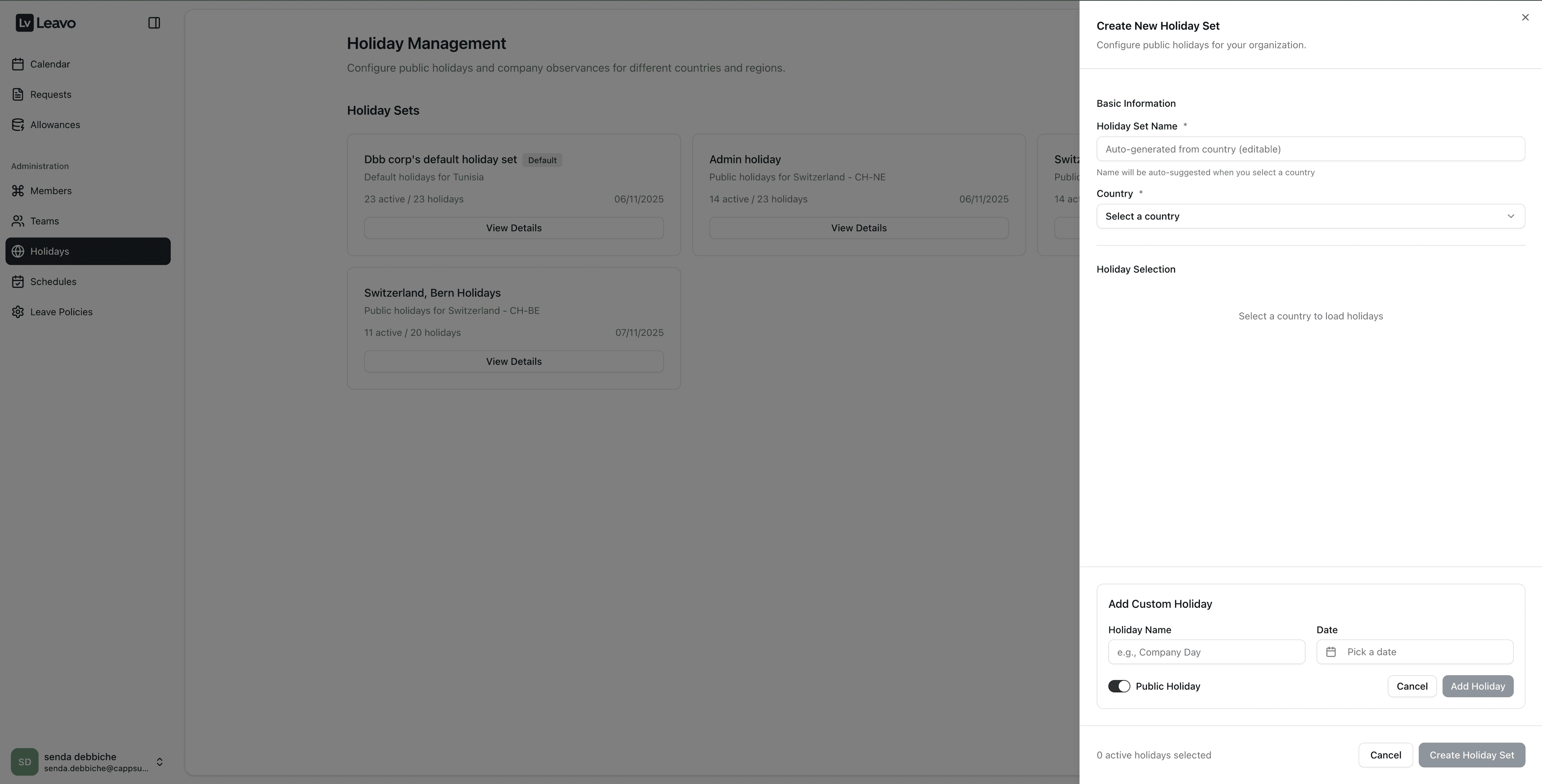
Use this to add internal company-specific holidays.
| Field | Description |
|---|---|
| Holiday Name | Example: Company Anniversary |
| Date | Select a date |
| Type | Public or custom holiday |
Creating the Holiday Set
- Review active holidays
- Click Create Holiday Set
- The set appears instantly in the Holiday Management dashboard
Editing an Existing Holiday Set
When clicking View Details, the edit panel opens:
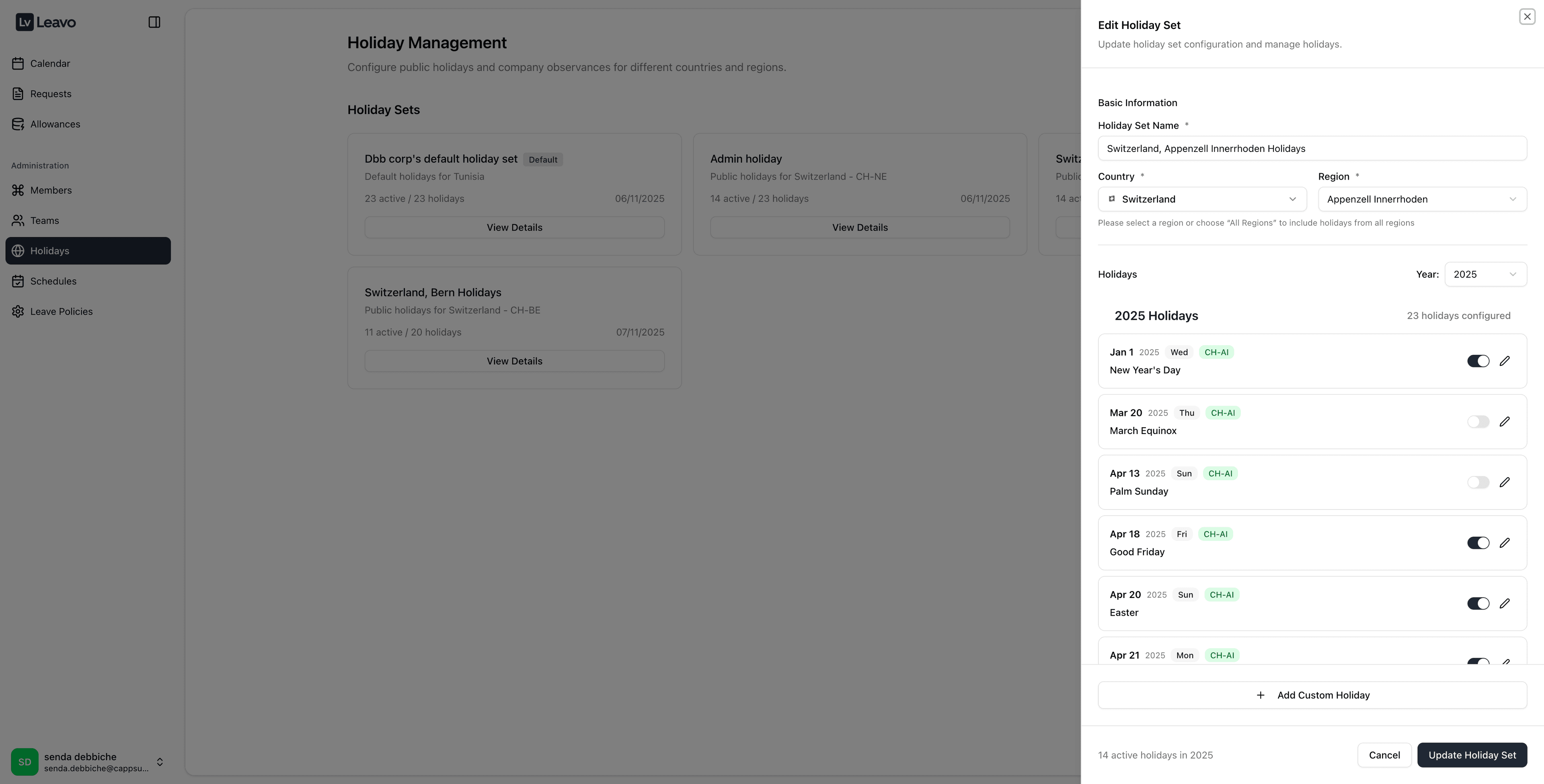
You can:
- Enable or disable holidays
- Add custom holidays
- Update country or region
- Rename the holiday set
Changes affect all future leave calculations.
You cannot delete a Default Holiday Set until another one is assigned.
Confirmation Modals When Editing Holiday Sets
When modifying an existing holiday set, Leavo provides two confirmation modals to prevent accidental large-scale changes.
Apply Changes
When you modify a single holiday (toggle ON/OFF, rename, etc.), Leavo asks how the change should apply:
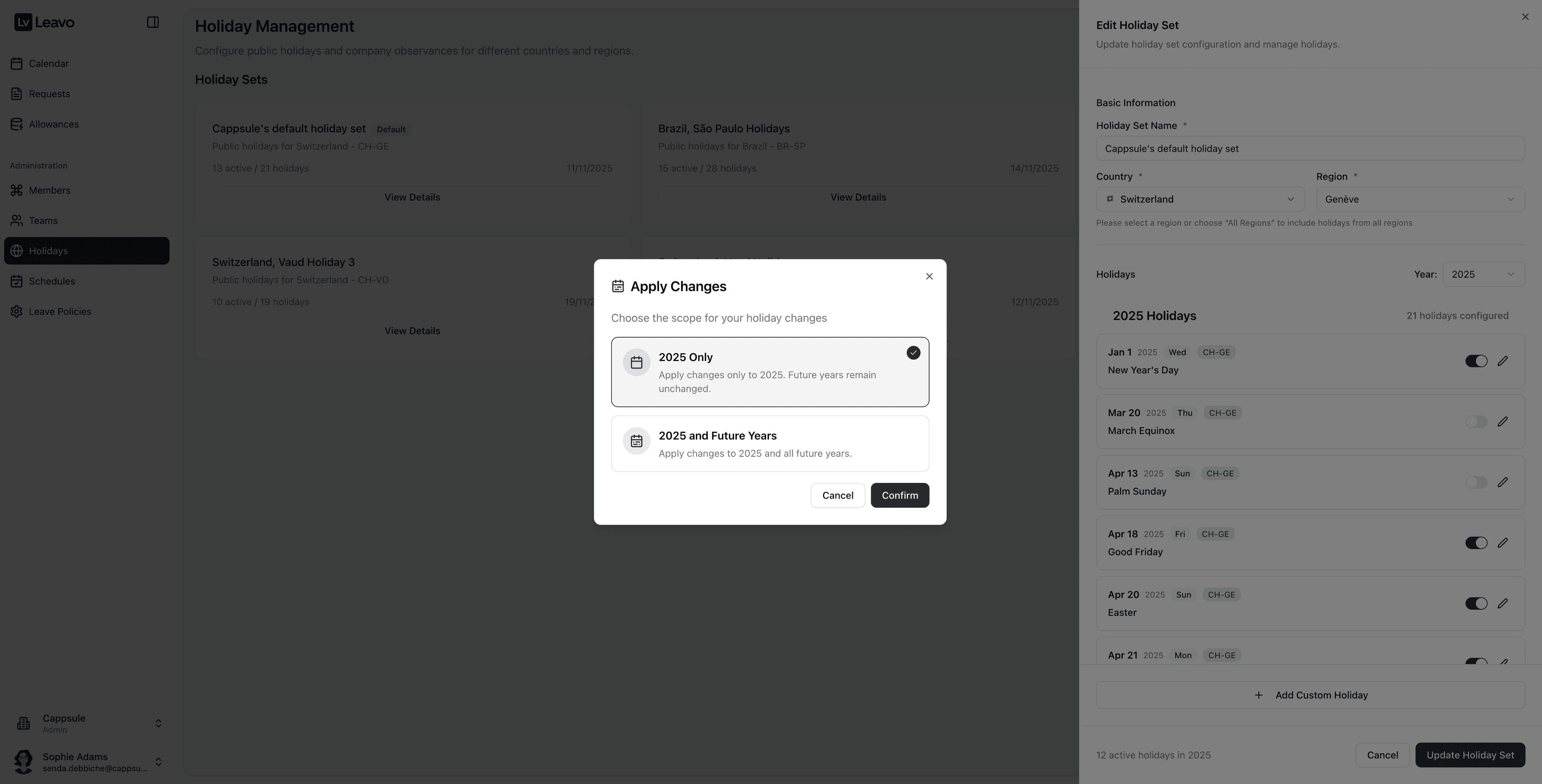
Options
Current Year Only
Applies the change only to the currently selected year.
Useful for correcting a specific year without affecting future ones.
Current and Future Years
Applies the modification to:
- The current year
- All future years based on the same holiday template
Past years are never modified, ensuring historical accuracy.
Country / Region Change Confirmation
When switching the country or region of an existing holiday set, this modal appears:
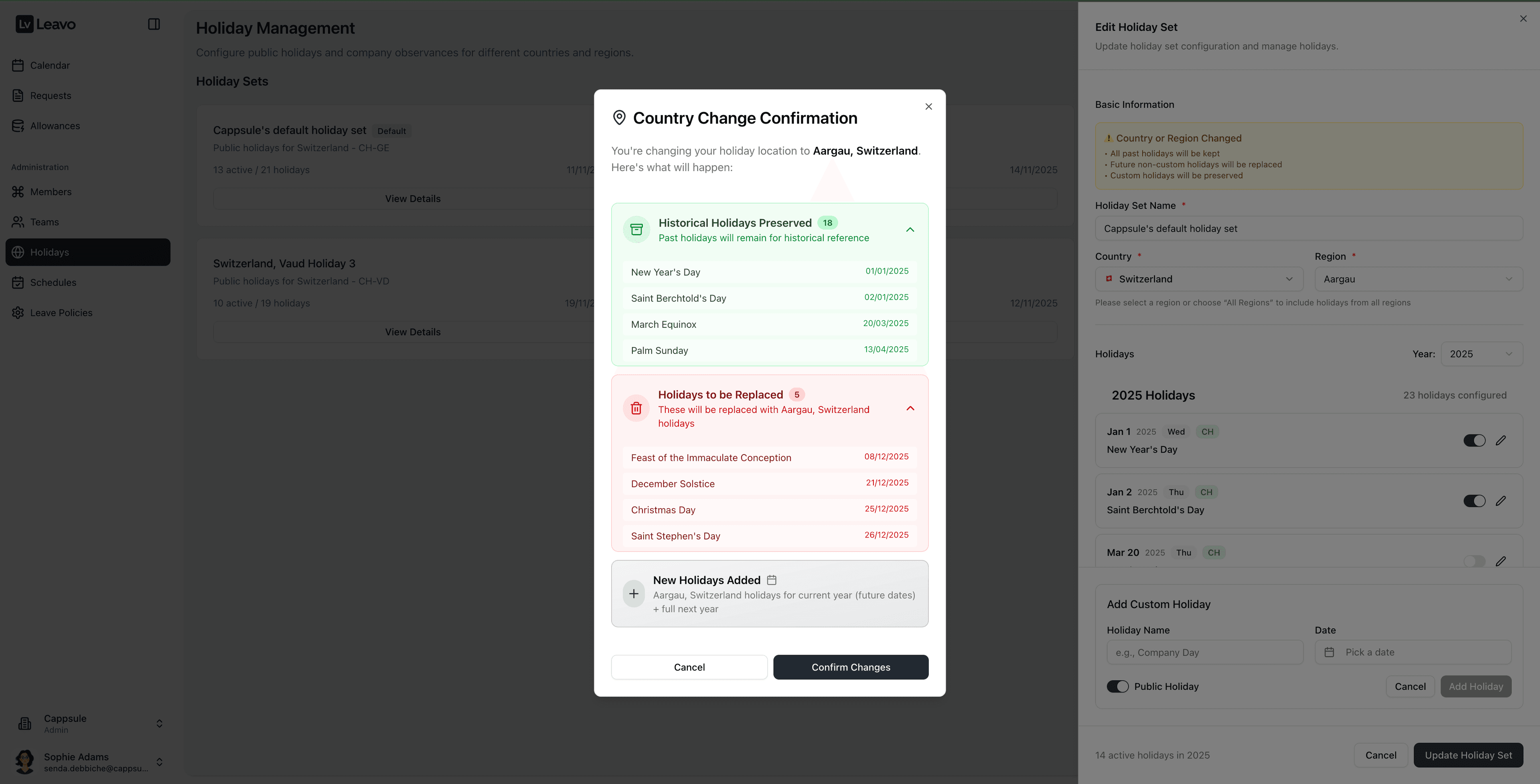
What happens:
- Past holidays are preserved
- Future public holidays are replaced
- New regional holidays are added
Custom holidays are always preserved.
Changing the country or region only replaces official public holidays.
Company-specific holidays remain unchanged.
Interaction with Members
Each member’s assigned Holiday Set determines:
- Non-working days
- Leave balance calculation
- Calendar visibility
Changes to holiday sets automatically update all relevant calculations.
Pro Tips
- Always select the correct region for accurate holidays
- Add custom holidays for internal company events
- Review holiday sets annually
- Duplicate sets for multi-country organizations
Properly configuring holiday sets ensures accurate leave calculations and consistent scheduling across your organization.