The Allowances page in Leavo lets you view and manage employees’ leave balances including total allowance, used days, pending requests, and remaining balances.
It provides both employees and administrators with full transparency into leave entitlements and consumption.
From this page, you can:
- View your total and available allowances for the selected year
- Track used and pending leave days
- See an overview of all leave types (Annual, Sick, Remote, etc.)
- Add manual adjustments (for admins)
- Switch between years to check balances historically
This page automatically updates when requests are approved or canceled, ensuring your balances stay accurate in real time.
Page Layout
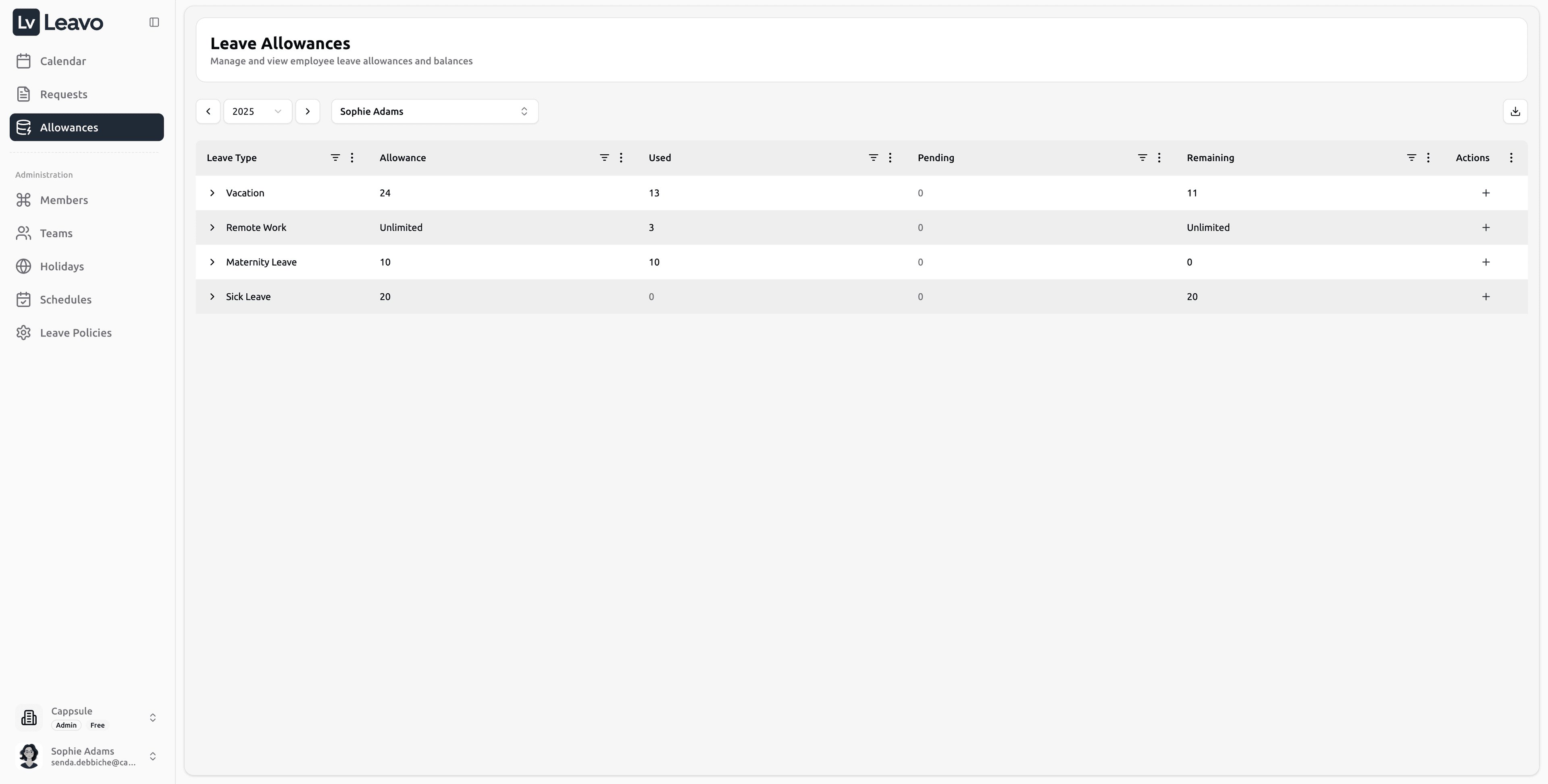
| Section | Description |
|---|---|
| Year Selector | Choose which year’s allowances you want to view. |
| Member Selector | Admins can switch between employees to view individual balances. |
| Table Section | Lists all leave types with total, used, pending, and remaining days. |
| Expandable Details | Expand a leave type to see where the allowance comes from (policies, etc.). |
| Actions Column (+) | Allows admins to make manual adjustments to balances. |
Leave Allowances Table
The table lists all leave categories available for the selected employee and year.
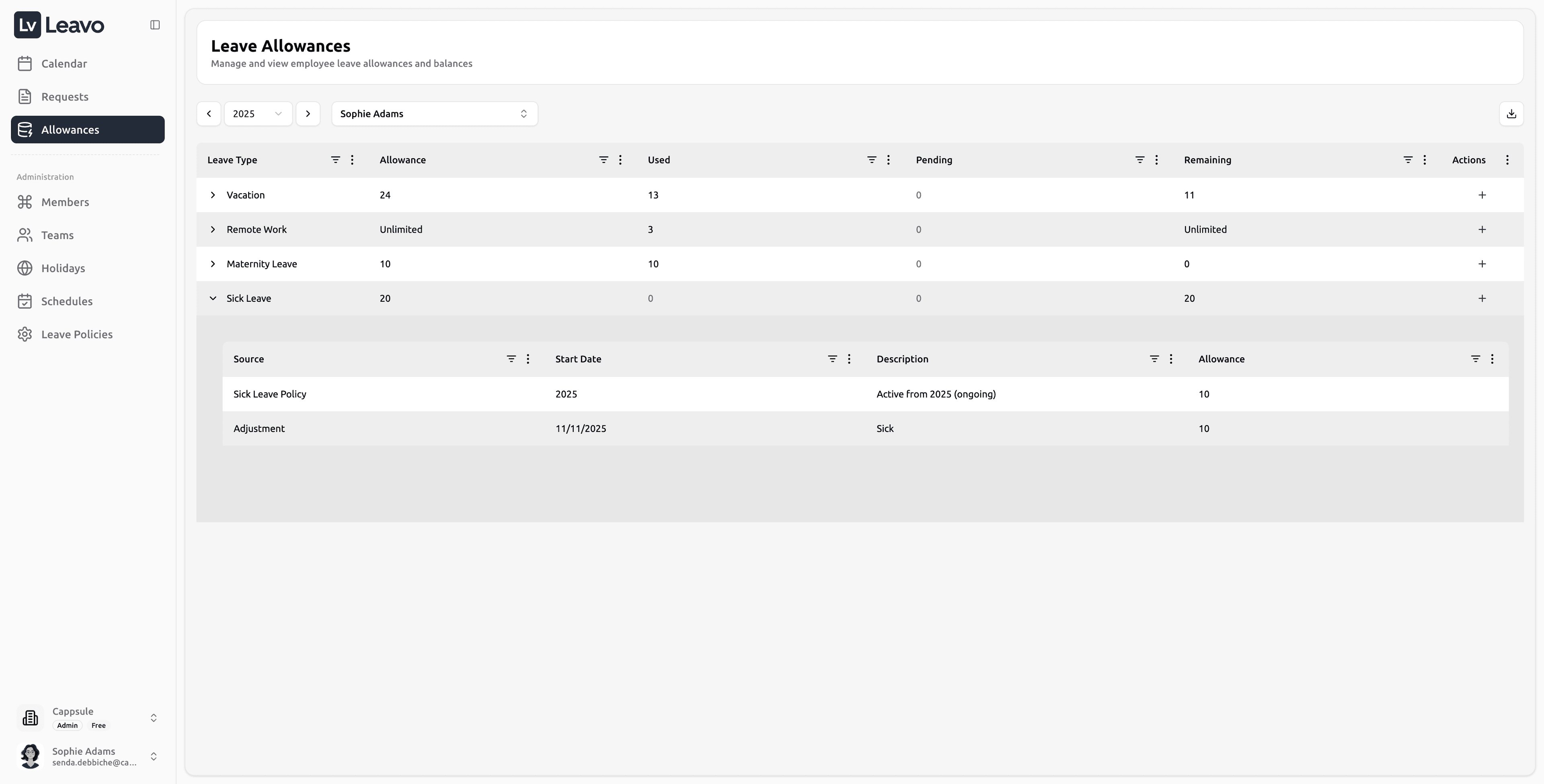
| Column | Description |
|---|---|
| Leave Type | The type of leave (Vacation, Sick, Remote). |
| Allowance | Total days granted per year or marked as Unlimited. |
| Used | Number of approved days taken so far. |
| Pending | Number of days currently awaiting approval. |
| Remaining | Available balance after deducting used and pending days. |
| Actions (+) | Admins can click this icon to manually adjust balances. |
Expanding a Leave Type (Sources)
You can expand a leave type row to see how the total allowance is built.
The details section typically shows:
- Policy sources (for example: Sick Leave Policy, Vacation Policy)
- Manual adjustments (added by an Admin)
- The start year/date and a short description
- The amount contributed by each source
This is especially useful when an allowance is the result of:
- Multiple policies for the same leave type (base + extra)
- Carry-over adjustments
- One-off corrections
Example
If your Vacation allowance is 25 days:
- 10 used
- 3 pending
- 12 remaining
- → 52% utilization
Manual Adjustments (Admins Only)
Admins can modify allowances directly to account for carry-overs, corrections, or special cases.
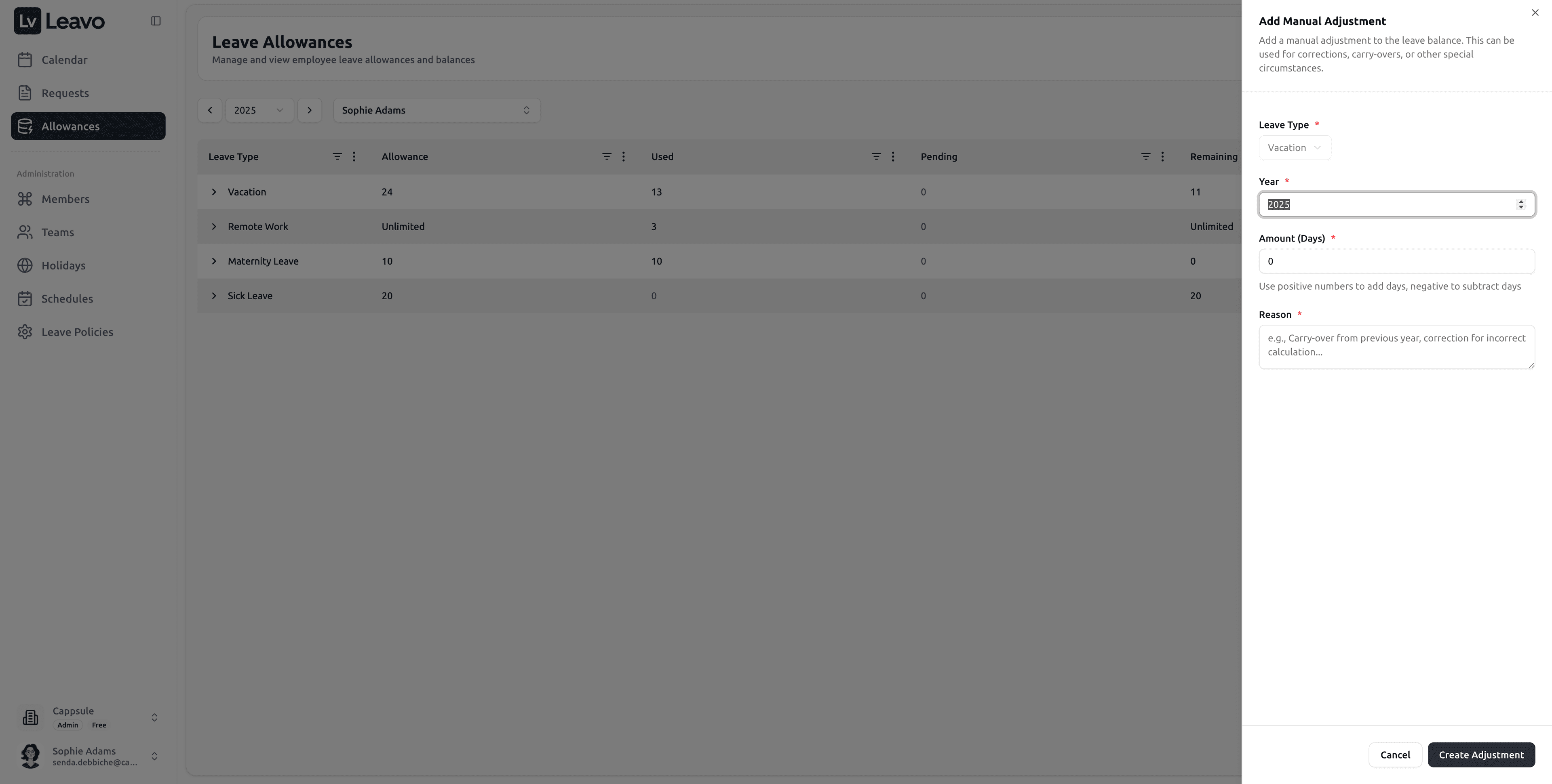
How to Add an Adjustment
- Click the ”+” icon beside a leave type.
- In the Add Manual Adjustment panel, fill in the following fields:
| Field | Description |
|---|---|
| Leave Type | Select the leave type to modify. |
| Year | Specify which year the adjustment applies to. |
| Amount (Days) | Enter a positive number to add days or a negative number to deduct days. |
| Reason | Briefly describe the adjustment (Carry-over from 2024, Correction for miscalculation). |
- Click Create Adjustment to save the change.
Adjustments are logged for audit purposes and immediately reflected in the employee’s balance.
Filtering and Switching Views
Use the dropdown filters at the top to quickly change context:
| Filter | Description |
|---|---|
| Year Selector | Navigate between past and upcoming years. |
| Member Selector | Admins can switch between employees. |
| Search | Find a specific leave type quickly. |
When you switch between members, Leavo automatically loads their data without needing a page refresh.
Export Data
Click the Download icon in the top-right corner to export allowance data to CSV or EXCEL format.
Exports include all leave types, balances, and consumption data for the selected member and year.
Troubleshooting
| Issue | Solution |
|---|---|
| Balances not updating | Refresh the page balances update after request approval or cancellation. |
| Missing leave types | Ensure the employee has a policy assigned in Leave Policies. |
| Incorrect totals | Check for manual adjustments or duplicated requests. |
| Unlimited types still showing numbers | Confirm the policy is correctly set to Unlimited. |
Your Allowances page provides a clear snapshot of leave usage and remaining balance.
Admins can make quick corrections, while employees can monitor their usage at a glance.
Allowances automatically synchronize with Requests and Leave Policies, ensuring every change stays consistent across Leavo.