Manage multiple companies inside Leavo all from one account.
Leavo now supports multi-company workspaces, allowing users to belong to several organizations at the same time.
If you’re invited to an additional company, it appears in your Company Switcher, and you can switch between workspaces instantly.
This feature is ideal for:
- HR consultants
- External accountants
- Employees working for multiple entities
- Group structures (mother company + subsidiaries)
With the Multi-Company feature, you can:
- Belong to several independent workspaces
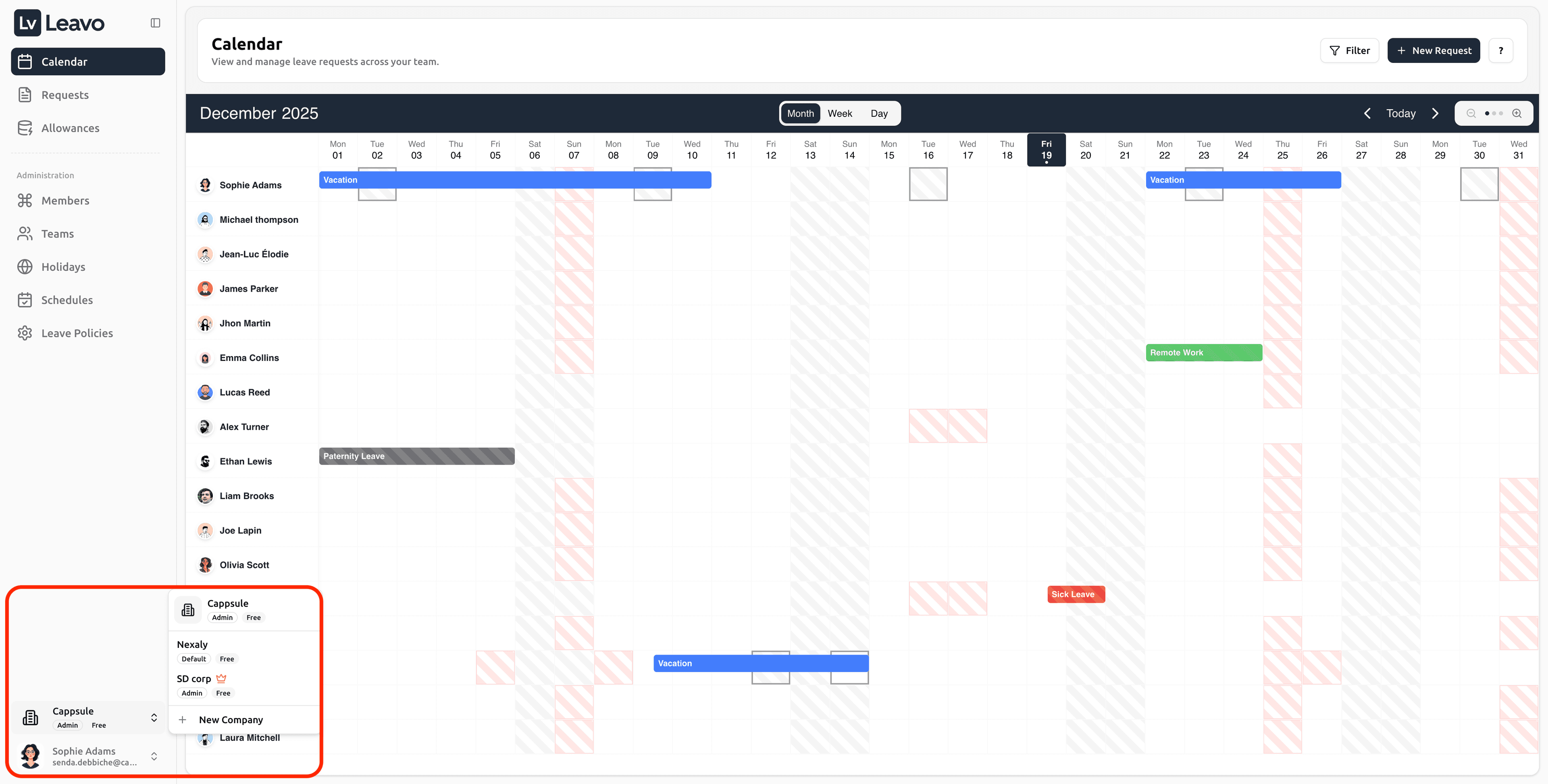
- Switch companies from the bottom-left selector
- Have different roles per company
- Keep calendars, requests, members, schedules, and policies fully separated
- Manage multiple organizations without creating multiple accounts
Below is an example of the company switcher:
How It Works
1️⃣ Invitation
Another company can invite you as:
- Admin
- HR
- Employee
Each company defines your role and access independently.
2️⃣ Company Switcher
All your companies appear in the bottom-left menu:
- Your current workspace
- Other companies you belong to
- New Company (if permitted)
3️⃣ One-click switching
Selecting a company reloads Leavo for that workspace only
with its own data, permissions, and settings.
Independent Roles & Permissions
Your role does not carry over between companies.
Example:
- Company A → Employee
- Company B → Admin
There is no cross-access between workspaces.
Separate Workspaces
Each company maintains its own:
- Leave policies
- Work schedules
- Holiday calendars
- Teams & approvers
- Member list
- Requests & allowances
- Reports & exports
- Email notifications
All data remains fully isolated.
Requests & Calendar Behavior
- You see only your requests for the selected company
- Approvers manage requests inside their workspace only
- The Calendar displays members from that company only
- No sync or merge happens between companies
Creating a New Company
If you have the right permissions, you can create a brand-new company directly from the Company Switcher by clicking + New Company.
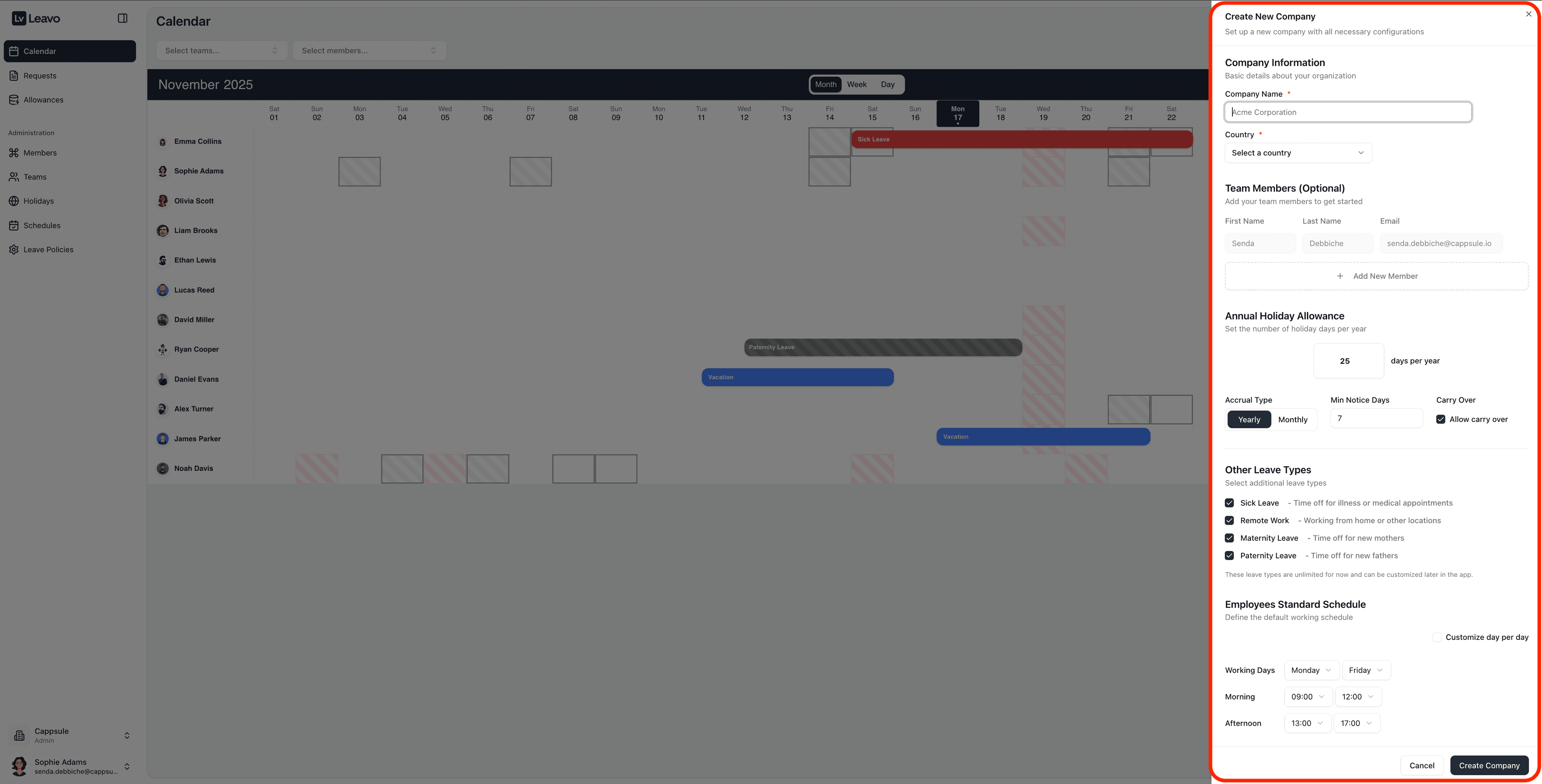
A side panel opens where you can configure the main settings for this new workspace:
Company Information
- Company Name – The name that will appear everywhere in Leavo (Calendar, Requests, Emails, etc.).
- Country – Used as a basis for default holidays and localization.
Team Members (Optional)
You can optionally add first members while creating the company:
- Invite key collaborators (HR, Admins, Managers) right away.
- Each member will receive an invitation email to join the new workspace.
You can always add more members later from the Members page.
Annual Holiday Allowance
Define the default annual holiday policy for this company:
- Days per year – Base allowance for vacation days.
- Accrual Type – Yearly or Monthly accrual.
- Min Notice Days – Minimum number of days in advance for requests.
- Carry Over – Decide if unused days can be carried over to the next year.
These settings create the first Vacation policy for the company.
You can refine or add more policies later in Leave Policies.
Other Leave Types
Quickly enable additional leave types such as:
- Sick Leave
- Remote Work
- Maternity Leave
- Paternity Leave
Each type is created as a basic, unlimited policy that you can customize afterwards
(paid/unpaid, attachments, limits, etc.).
Employees Standard Schedule
Set the default working schedule for the new company:
- Working days (Monday → Friday)
- Morning and afternoon time slots
- Optional toggle “Customize day per day” for more granular schedules
This schedule is applied to new members by default and can be overridden per employee later.
Once everything is set, click Create Company.
Your new workspace is created with its own:
- Members
- Policies & leave types
- Holidays
- Schedules
- Requests and allowances
You can now switch to it from the Company Switcher and continue the setup like any other company.
Pro Tips
Perfect for group structures: Manage subsidiaries or departments with distinct HR rules.
Flexible roles: Be Admin in one company and Employee in another ideal for consultants.
Clean separation: All data (requests, balances, members) stays within its company.