Manage your organization’s leave rules, allowances, and types in one place.
The Leave Policies page enables Admins and HRs to define the different types of leave employees can take and configure how those leaves are accrued, approved, and applied to members or teams.
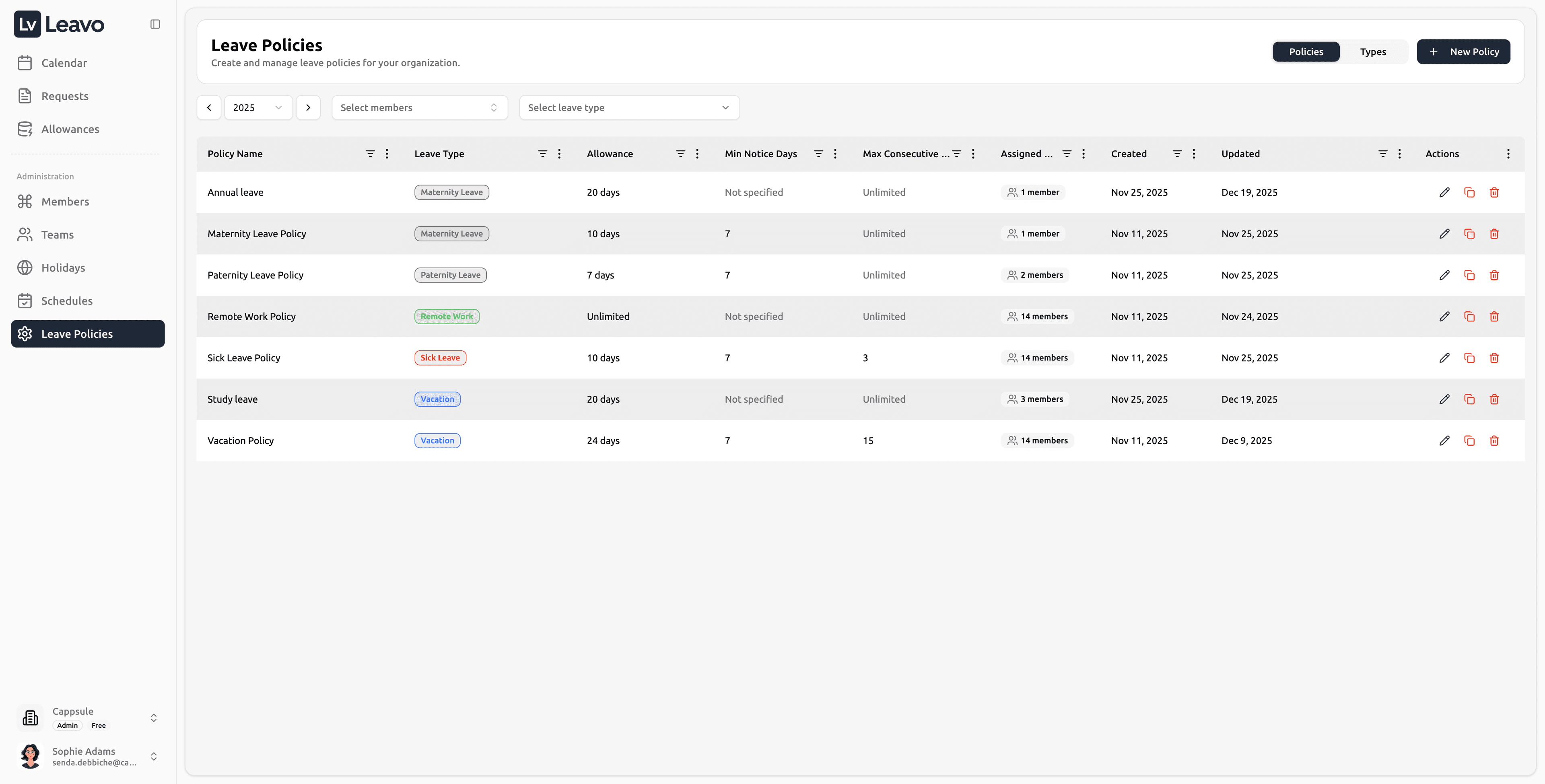
From the Leave Policies section, you can:
- Create new leave policies (Vacation, Sick Leave, Remote Work)
- Assign policies to specific members or teams
- Set up rules for carry-over, accrual, and approvals
- Edit or duplicate existing policies for future periods
- Manage all leave types defining whether they are paid and if documents are required
Only Admins and HR users can access and manage leave types and policies.
Employees can only view their own assigned leave entitlements.
Leave Policies
Leave Policies define how and when each type of leave can be used.
They include yearly or unlimited allowances, minimum notice periods, and whether manager approval is required.
Leave policies appear only in the profile of the employee concerned.
Each user sees only the policies assigned to them whether directly or through their team.
Policies Overview
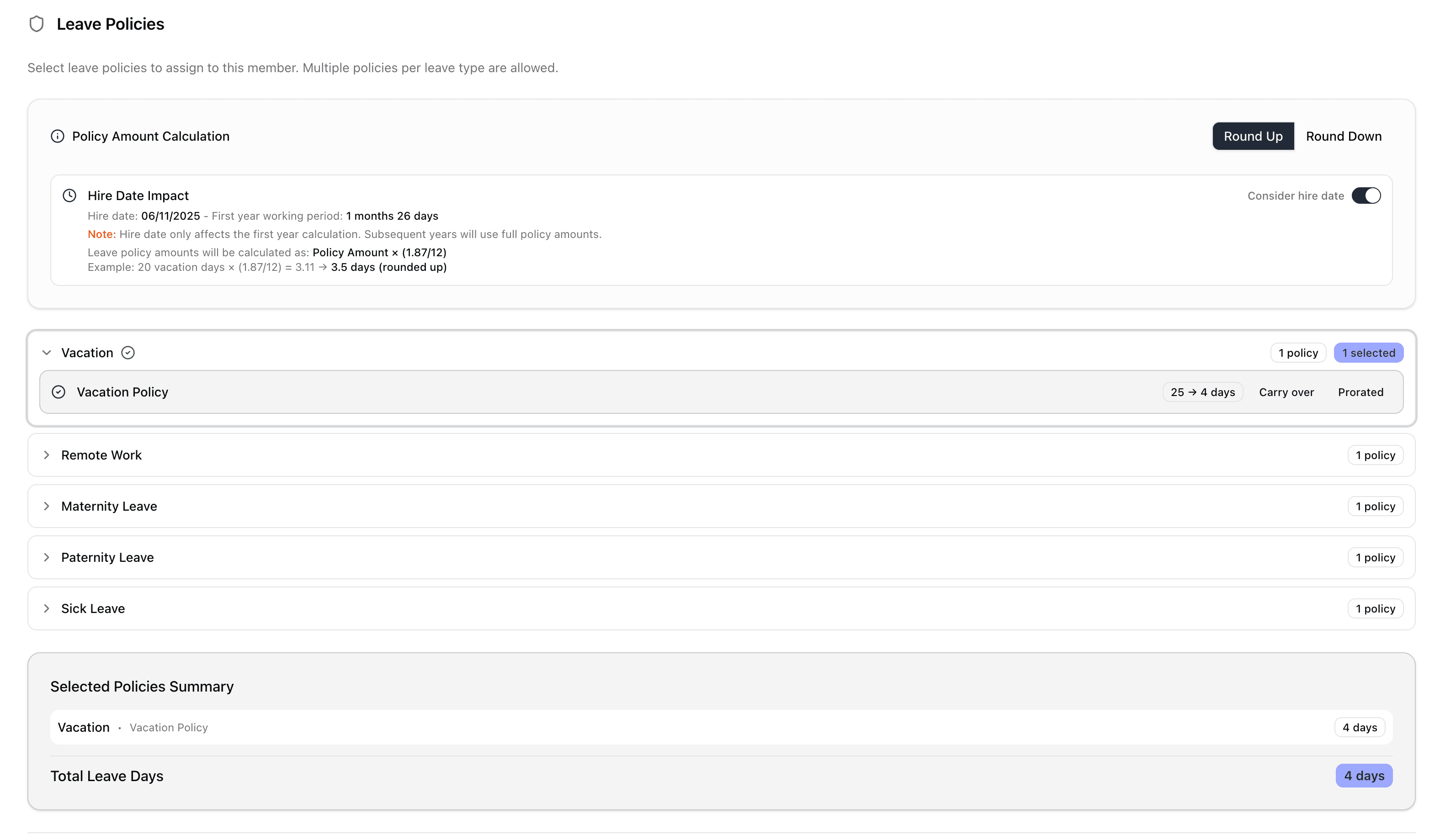
Each policy appears in a table with detailed columns:
| Column | Description |
|---|---|
| Policy Name | The name of the policy (Vacation Policy, Sick Leave Policy). |
| Leave Type | The category of leave (linked from Leave Types). |
| Allowance | The total number of days granted to employees. |
| Min Notice Days | The minimum number of days before leave can be requested. |
| Max Consecutive Days | The maximum days allowed per continuous leave period. |
| Assigned Members | Number of members currently assigned to the policy. |
| Created / Updated | Dates when the policy was created and last updated. |
| Actions | Edit , Duplicate , or Delete the policy. |
Create a New Leave Policy
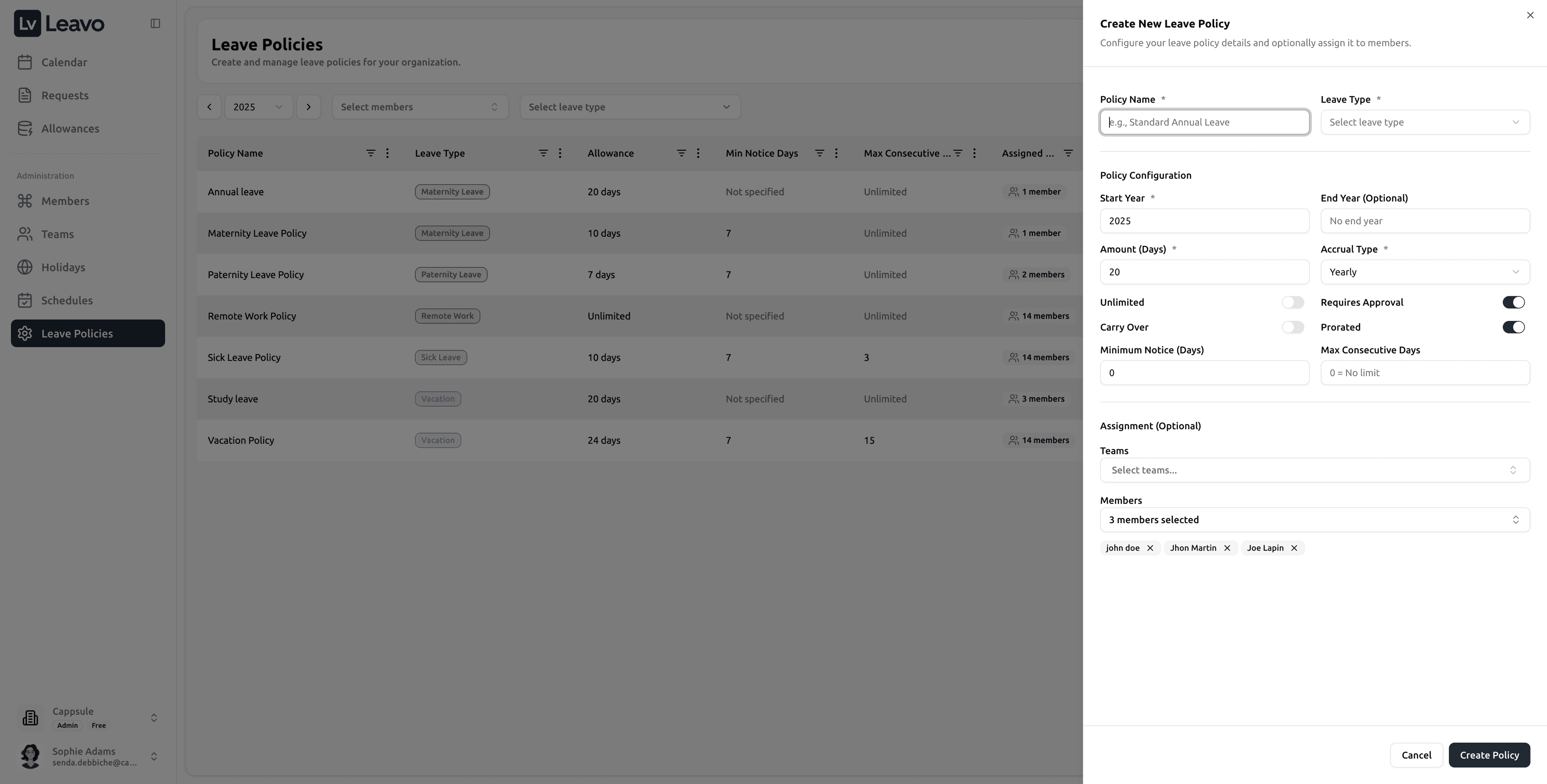
Click Add Policy to configure a new leave policy.
Basic Information
| Field | Description |
|---|---|
| Policy Name | Enter a name for the policy (Standard Annual Leave). |
| Leave Type | Select the leave category this policy applies to (from Leave Types). |
Policy Configuration
| Field | Description |
|---|---|
| Start Year | Defines when the policy starts (2025). |
| End Year (Optional) | Specify an end year if the policy has a limited duration. |
| Amount (Days) | Total number of leave days allocated per year. |
| Accrual Type | Choose between Yearly or Monthly accrual. |
| Unlimited | Toggle ON for unlimited leave. |
| Carry Over | Toggle ON to allow unused days to roll over to the next year. |
| Carry Over Limit (Days) | Optional cap on how many unused days can be carried over. Any days above this limit are ignored. |
| Requires Approval | Toggle ON if manager or HR approval is required before validation. |
| Prorated | Toggle ON to adjust accrual automatically for partial employment periods. |
| Minimum Notice (Days) | Minimum number of days required before leave can be taken. |
| Max Consecutive Days | Set a limit on consecutive days per leave request. |
- Carry Over Limit lets you restrict how many unused days are moved to the next year. When the carry-over job runs, any balance above this limit is automatically discarded so that only the allowed number of days is transferred.
- Carry over is calculated automatically every 31 December at midnight for all companies and all members — no manual action is required.
- For part-time employees, Leavo automatically calculates leave entitlements on a pro rata basis; no manual configuration is needed.
Example: if a full-time employee has 20 days per year, a 50% contract automatically grants 10 days.
Assignment (Optional)
| Field | Description |
|---|---|
| Teams | Assign the policy to one or more teams. |
| Members | Assign the policy directly to selected members. |
Actions
Create Policy— Save and activate the policy.Cancel— Discard and close the panel.
Policy Assignments & Behaviour
Once policies are created and assigned, Leavo applies clear rules to ensure consistency between Allowances, Requests, and the Calendar.
Unassigning a Policy from a Member
When you unassign a policy from a member who already has leave requests created with that policy:
- The policy is removed from the member’s Allowances page.
- Existing leave requests created under that policy are kept:
- They remain visible in the Requests page.
- They stay displayed in the Calendar.
This guarantees that historical and future approved absences are not lost, even if the underlying policy is no longer assigned to the member.
Multiple Policies with the Same Leave Type
You can assign several policies with the same Leave Type (for example, multiple Vacation policies) to the same member.
- The Amount (Days) from all active policies of the same type is cumulative.
The member’s total entitlement for that type is the sum of all related policies. - In the Allowances page, the member will:
- See all policies linked to that leave type, and
- See a total balance reflecting the combined amounts.
This is useful for scenarios such as:
- Base annual vacation + extra seniority days
- Additional vacation package for a specific year
Request Rules When Multiple Policies Apply
When a member submits a leave request for a type that is backed by multiple policies, Leavo automatically enforces the most restrictive rules to stay compliant:
-
Deduction of days
- The requested days are automatically deducted from one of the eligible policies associated with that leave type.
- Leavo handles the allocation internally, so users don’t need to select a policy manually.
-
Minimum Notice (Days)
- If policies have different Minimum Notice values, the system applies the highest value.
→ The request must respect the strictest minimum notice across all related policies.
- If policies have different Minimum Notice values, the system applies the highest value.
-
Max Consecutive Days
- If policies have different Max Consecutive Days, the system applies the lowest value.
→ The request cannot exceed the smallest allowed duration across all related policies.
- If policies have different Max Consecutive Days, the system applies the lowest value.
In general, when several policies share the same Leave Type, Leavo always applies the “most restrictive” combination of rules (highest minimum notice, lowest maximum duration) to ensure internal policies are respected and no request exceeds your defined limits.
Edit Leave Policy
Click the Edit () icon next to an existing policy to modify its configuration.
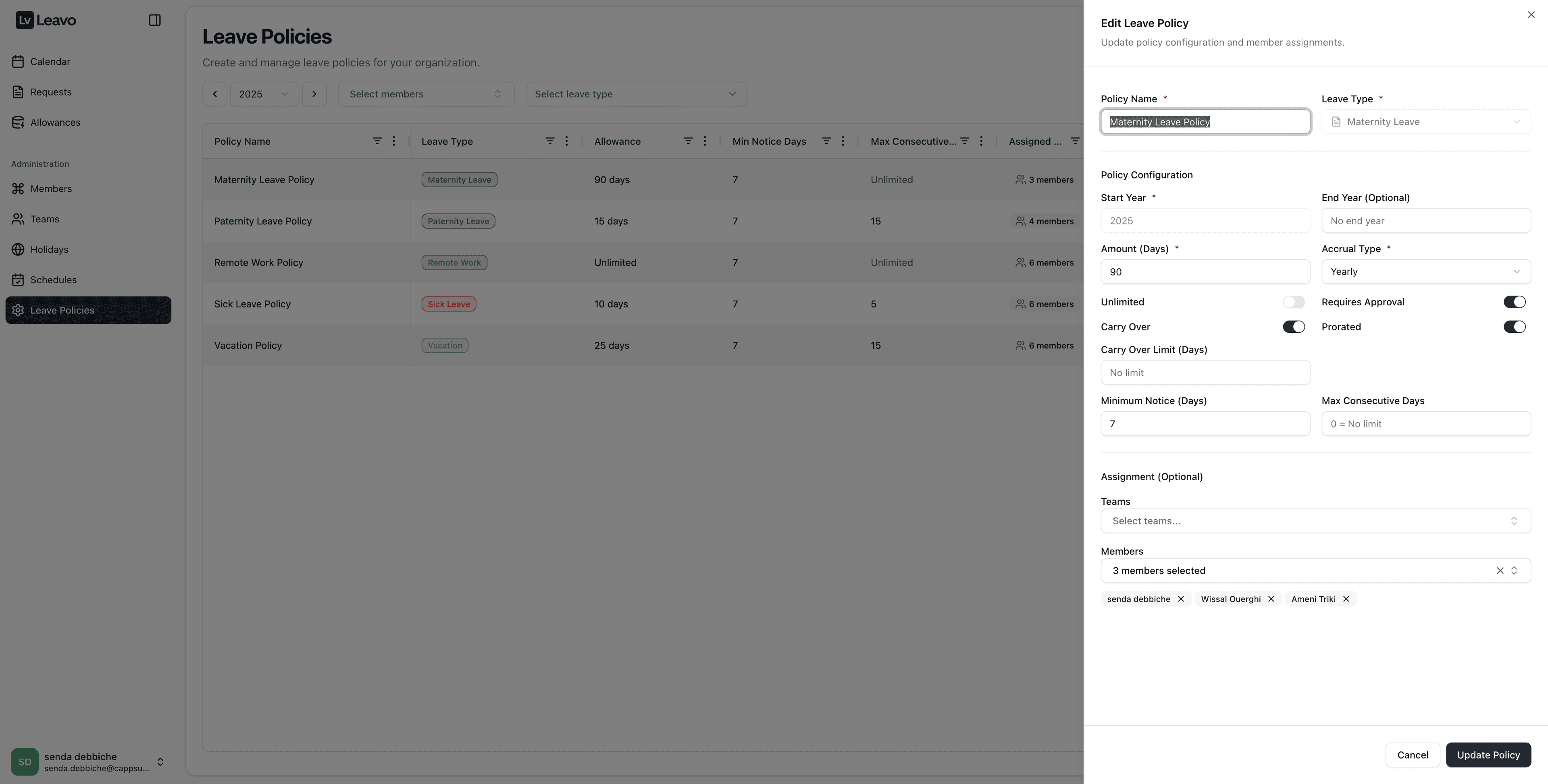
You can update:
- The policy name
- Allowance and accrual rules
- Assigned teams and members
- Approval, carry-over, and carry-over limit settings
After making updates, click Update Policy to save the changes.
Changes take effect immediately for all assigned members.
End-of-Year Policy Management
Leave policies are typically defined per calendar or fiscal year.
When transitioning from one year to another (for example, 2025 → 2026), you must create a new policy for the upcoming year instead of modifying the existing one.
Each year should have its own dedicated policy period.
This ensures accruals, carry-overs, and balances remain accurate for historical tracking.
Example Scenarios
| Situation | What to Do |
|---|---|
| The company’s annual vacation policy for 2025 is ending. | Edit the 2025 policy and set End Year = 2025. Then click Duplicate Policy, rename it to “Vacation Policy 2026,” and set Start Year = 2026. |
| Sick Leave rules are changing next year (from 10 to 12 days). | End the old policy in 2025 and create a new one for 2026 with the updated allowance. |
| You want to retain previous years’ records for auditing. | Keep the old policies active with their defined start/end years. Never overwrite or delete them. |
Use the Duplicate feature to easily create next year’s policy based on the previous year’s configuration — just adjust the Start Year, End Year, and any new rules.
Do not modify the start year of an existing policy already assigned to members.
This can corrupt historical leave balances and reports.
Duplicate Leave Policy
Click the Duplicate () icon to quickly create a new policy using an existing one as a template.
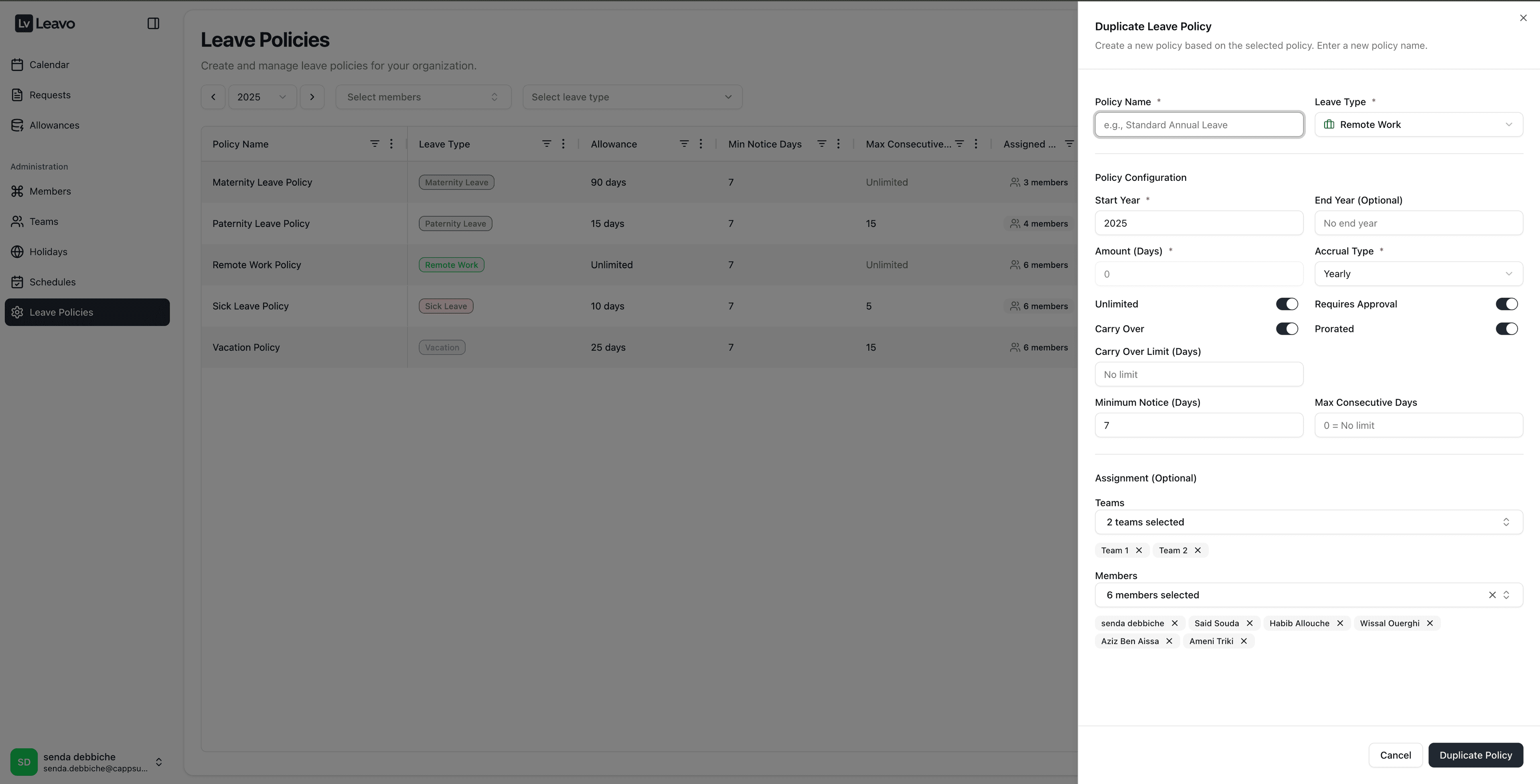
All settings are pre-filled and can be modified before saving.
Actions:
Duplicate Policy— Creates a copy of the selected policy.Cancel— Discards without saving.
Delete Leave Policy
Click the Delete () icon to permanently remove a policy.
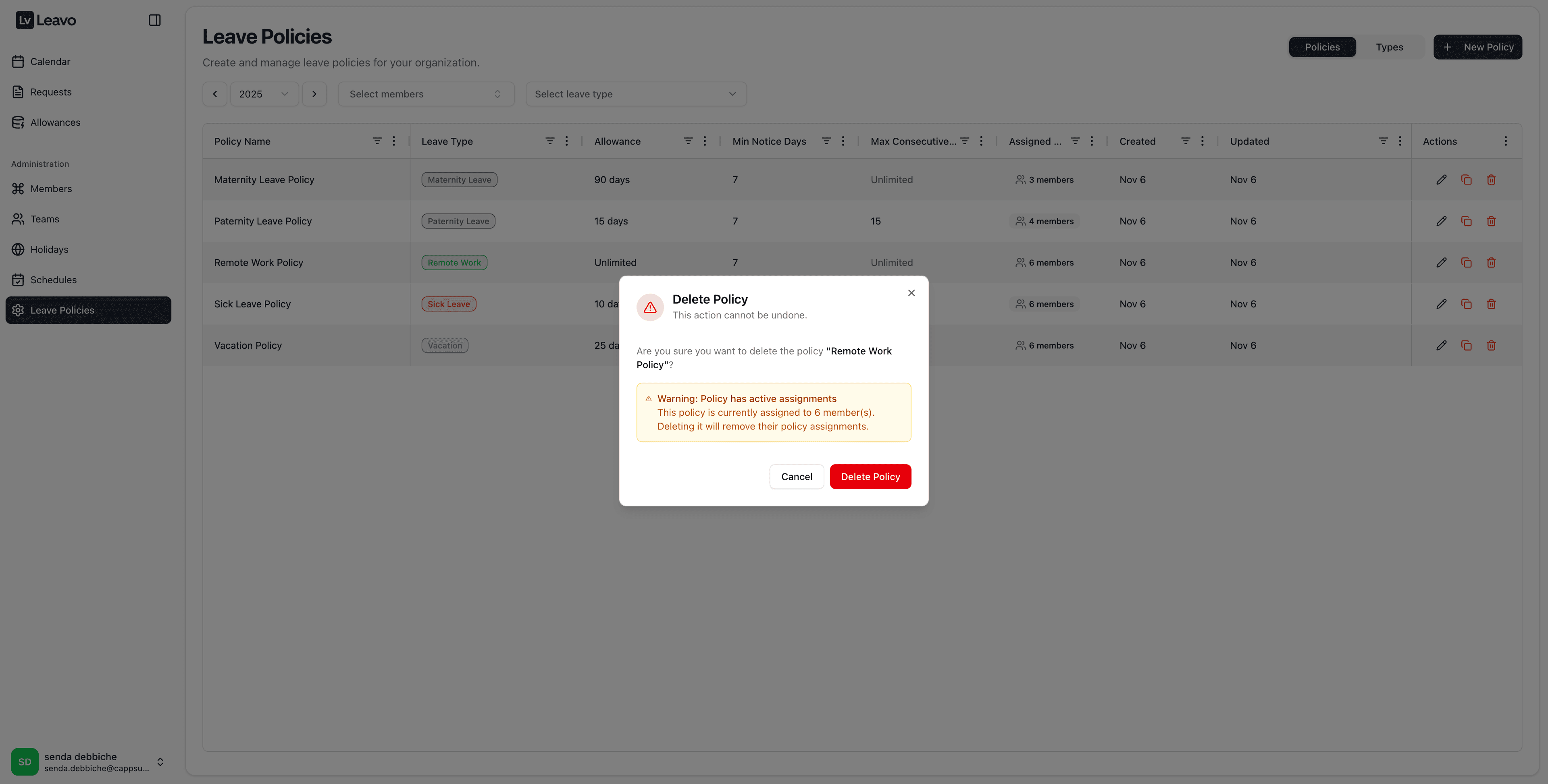
A confirmation modal appears:
This policy is currently assigned to members. Deleting it will remove their policy assignments.
Actions:
CancelDelete Policy— Permanently removes the policy (cannot be undone).
Deleting a leave policy that is assigned to members and has future approved leave requests does not remove or invalidate those requests.
- The policy will disappear from the Allowances page.
- The leave requests remain visible on the calendar so employees and managers can still track approved absences.
- These requests will no longer be linked to a specific leave policy but will still appear as scheduled time off.
This ensures that already-approved absences are never lost, even if the original policy is removed.
As a best practice, we strongly recommend avoiding deletion of leave policies that are already in use.
Instead:
- Set an appropriate End Year on the policy so it stops applying in the future.
- Unassign the policy from members and teams that should no longer use it.
This approach:
- Preserves historical data and past calculations.
- Prevents confusion between Requests, Allowances, and Calendar views.
- Keeps your records auditable while ensuring that the policy is no longer used for new leave requests.
Leave Types
Leave Types define the categories of absence (Vacation, Sick Leave, Remote Work).
Each leave type specifies whether it is paid, requires attachments, and whether it is enabled for use.
Leave Types Overview
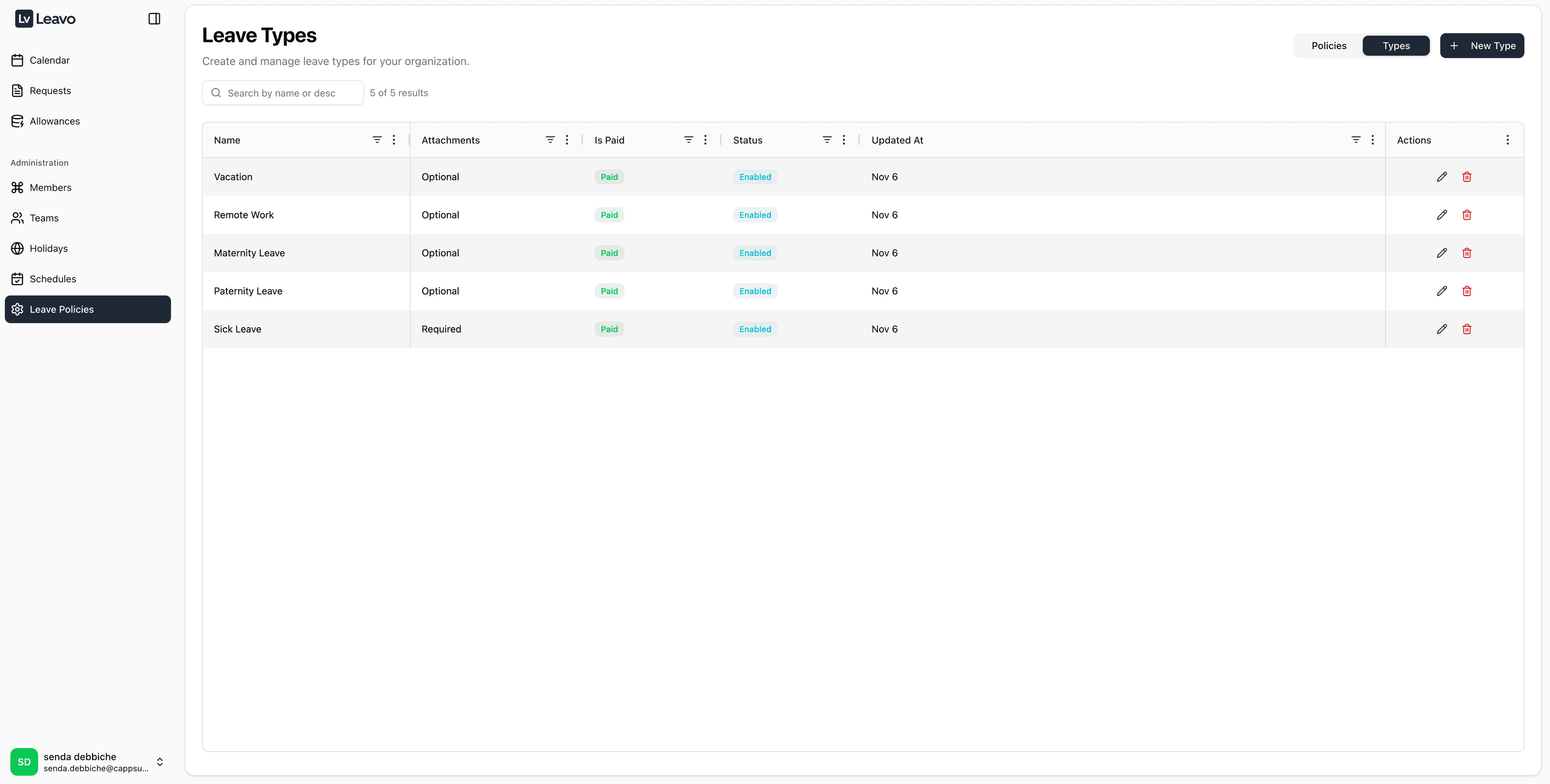
| Column | Description |
|---|---|
| Name | The title of the leave type. |
| Attachments | Shows whether documentation is Required or Optional. |
| Is Paid | Indicates whether the leave is paid or unpaid. |
| Status | Displays whether the leave type is Enabled or Disabled. |
| Updated At | Date of the most recent modification. |
| Actions | Edit or Delete . |
Create a New Leave Type
Click New Type to define a new leave category.
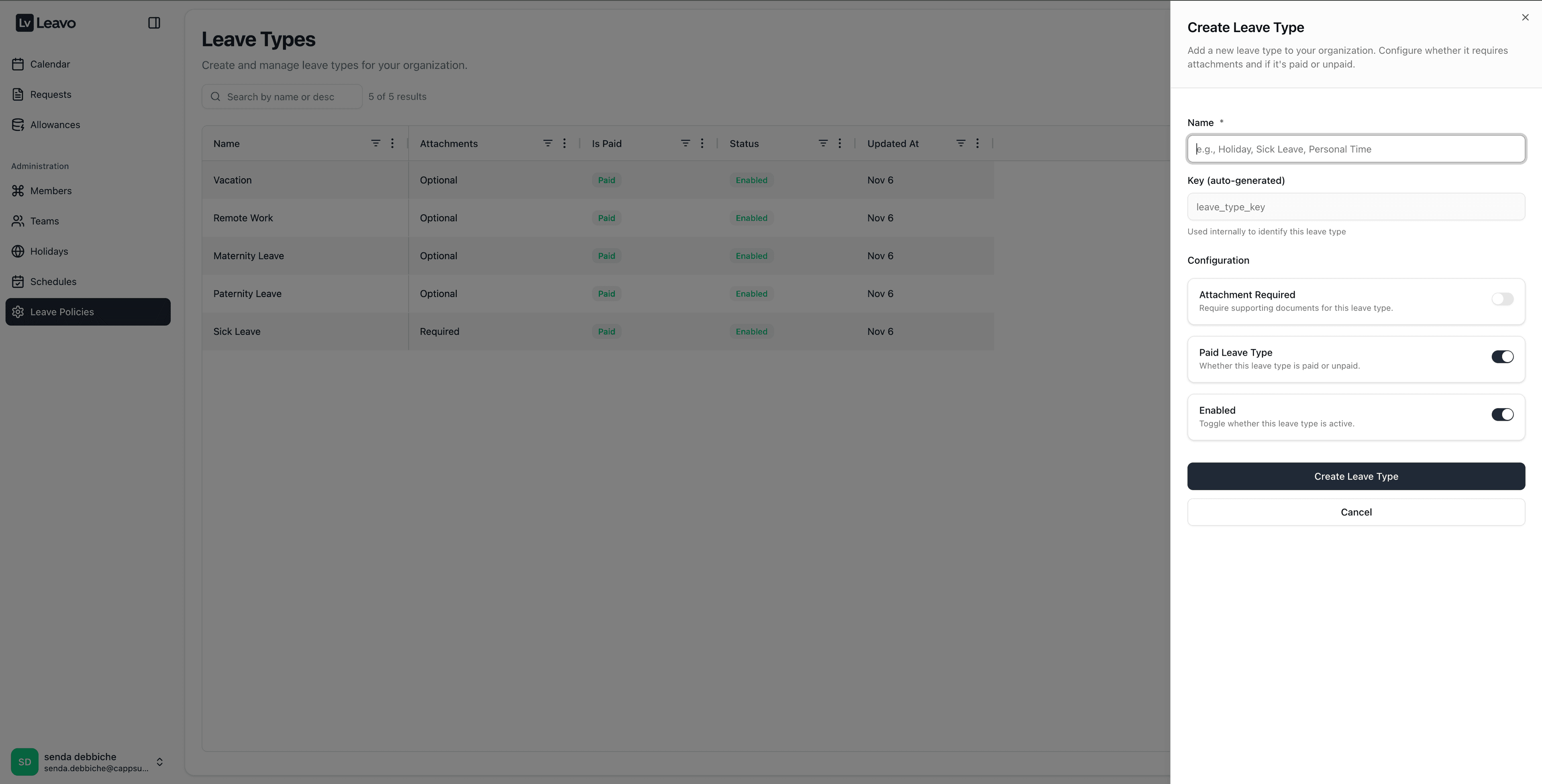
| Field | Description |
|---|---|
| Name | Enter the leave name (Sick Leave, Vacation). |
| Key (auto-generated) | Automatically created internal identifier. |
| Attachment Required | Toggle ON if employees must provide a document (medical certificate). |
| Paid Leave Type | Toggle ON if the leave is paid. |
| Enabled | Toggle ON to make the leave type available. |
Actions:
Create Leave TypeCancel
Edit Leave Type
Click the Edit () icon next to an existing leave type.
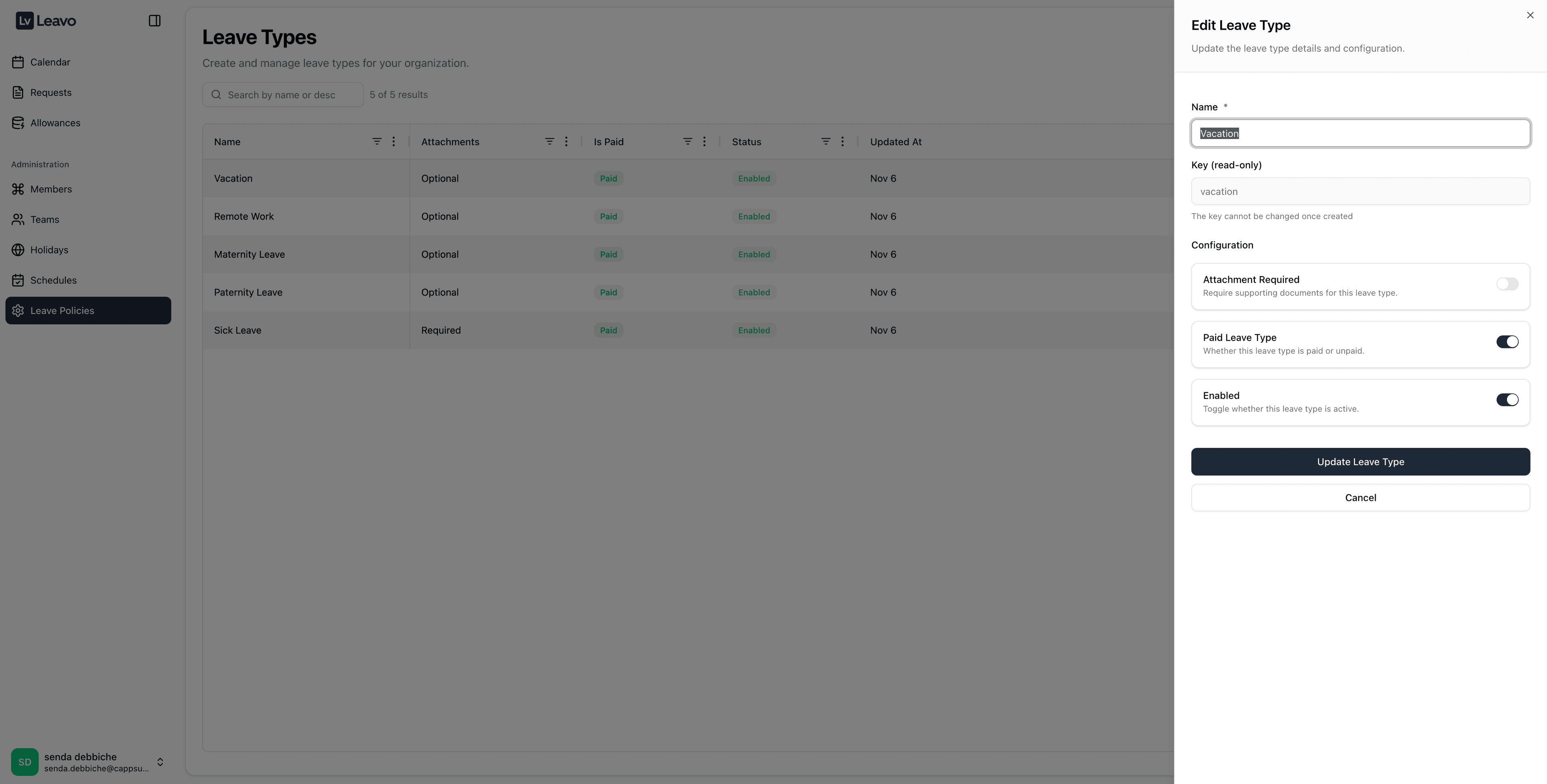
Update any of the following fields:
- Name
- Attachment requirement
- Paid/unpaid status
- Enabled toggle
Click Update Leave Type to apply changes.
Delete Leave Type
Click the Delete () icon next to the leave type you wish to remove.
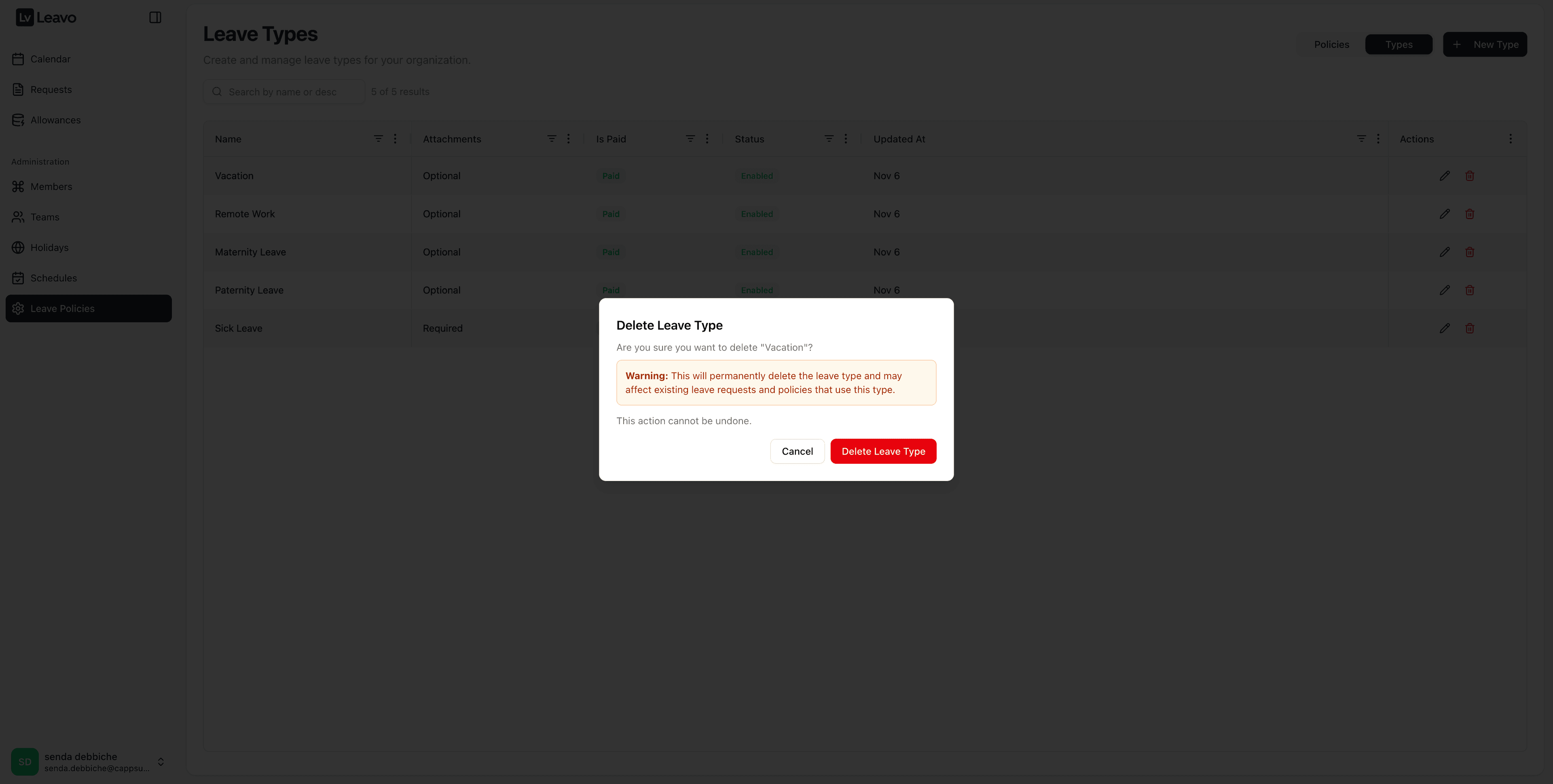
A confirmation message appears:
This will permanently delete the leave type and may affect existing leave requests or policies.
Actions:
CancelDelete Leave Type
Pro Tips
- Align Leave Types and Policies: Always create the leave type before assigning it to a policy.
- Assign Smartly: You can link policies to individual members or entire teams.
- Use Duplication: Speed up yearly policy renewals using the Duplicate feature.
- Enable Attachments: Require documents for leaves such as Sick or Maternity Leave to maintain compliance.
- Check Dependencies: Before deleting a type or policy, ensure it’s not linked to active requests or members.
Once configured, your Leave Policies ensure consistent and automated management of all employee leave types, durations, and approval workflows.
This guarantees transparency, compliance, and efficiency across your organization.
Troubleshooting
| Issue | Possible Cause | Solution |
|---|---|---|
| A member cannot create a leave request | No leave policy is assigned to the member or their team. | Go to Members → Leave Policies and make sure at least one active policy is assigned directly or via their team. |
| The policy is not visible in the member’s profile | Policy not assigned, achieved End Year, or wrong team assignment. | Check the policy’s Start/End Year, confirm it’s still active, and verify that the member or their team is selected in the Assignment section. |
| Allowance days look incorrect | Wrong Amount (Days), missing Prorated option, or hire date logic not enabled. | Review the policy configuration (Amount, Prorated, Start Year) and the member’s Hire Date to ensure calculations match your HR rules. |
| Carry over did not apply as expected on 1 January | Carry-over disabled or Carry Over Limit (Days) set too low. | Confirm that Carry Over is ON and the Carry Over Limit is set according to your policy. Remember, the job runs 31 December at midnight each year. |
| Member still sees old policy balances after a change of policy | Old policy remains assigned alongside the new one. | Remove or end-date the previous policy for that member and ensure only the new policy is active for the current year. |
| Future approved requests still appear after deleting a policy | Expected behaviour: deleting a policy does not remove existing requests. | This is normal. Requests remain visible in the Calendar for traceability. If needed, adjust or cancel those requests from the Requests page. |
| Employee can request more days than expected | Max Consecutive Days or Min Notice Days not configured or too permissive. | Edit the policy and review Minimum Notice (Days) and Max Consecutive Days so that the system can enforce your internal constraints. |
| Attachment is not requested for Sick Leave or other types | The leave type is not configured with Attachment Required. | Go to Leave Types, edit the relevant type, and toggle Attachment Required ON. This will be enforced on the Requests page for new submissions. |
| Policy changes do not reflect on the Allowances page immediately | You’re viewing a different year or looking at cached data. | Make sure the year selector in the Allowances page matches the policy’s year. Then refresh the page to reload the updated allowances. |
| Member in part-time has the same days as a full-time employee | Contract / work percentage not correctly defined in the member setup. | Verify the member’s contract information and schedule. Leavo will then recalculate entitlements automatically on a pro rata basis based on their work ratio. |
If something still looks inconsistent after checking these points, review:
- The member’s Hire / End Date
- The policy’s Start / End Year
- The assigned Holiday Set and Schedule
These three elements (policy, holidays, schedule) work together to compute final allowances and eligibility rules.